Case study · SipPublished
Water reminders people don't switch off
Most people know they should drink more water, and most water apps don't help them do it. The goal is the same for everyone, logging is fiddly, and the reminders go off at the wrong time. Sip works out a goal for each person, logs a glass in one tap, and stops reminding you once you're on track.
- iOS app
- Health & wellness
- Habit tracking
- Product design
- UX & UI
- Clickable prototype
At a glance
- Platform
- iOS, iPhone
- Who it's for
- People building a daily water habit
- Our role
- Product design, UX, UI, prototype
- Year
- 2026
The problem
Drinking more water is an easy goal to set and an easy one to forget. The apps that try to help often turn it into a chore, asking about every drink and buzzing every hour. We designed Sip to need as little as possible from the person and to know when to stay quiet.
- 01
A goal that isn't yours
Eight glasses a day is a rule of thumb. Weight, activity, and hot weather all change how much someone needs.
- 02
Logging feels like work
If recording a glass takes more than a tap, people stop by the afternoon.
- 03
Reminders people switch off
Hourly alarms go off in meetings, after the goal is met, and late at night, until people turn them off.
- 04
Not every drink is water
Tea, coffee, and juice count for something. Most trackers either ignore them or count them in full.
How we approached it
- 01
A goal worked out for you
Weight, activity, and waking hours set the daily goal, and an optional hot-day boost raises it on warm days.
- 02
One tap to log
Quick-add buttons sit on the home screen, and each drink counts for the water it actually adds.
- 03
Reminders that know when to stop
Reminders follow the person's day, skip a nudge when they're on track, and pause once the goal is met.
- 04
Friends without the details
Friends see a weekly percentage and badges. They never see what someone drank.
Onboarding
The problemA water goal only works if people believe it, and they won't if it's the same number for everyone.
What we did
- The intro screens show what reminders and friends look like in the app before asking for anything.
- Each setup step says why it asks. Personal details are only used to work out the goal.
- Permissions are explained before the system prompt appears. Reminders never come during sleep hours, and location is only used for the hot-day boost.
- The plan comes back as one number, 2.5 liters a day, with the glasses and reminder times that get there.
- Errors are designed too. A failed log-in says what went wrong and how to fix it.
SplashHydrate. Feel better. 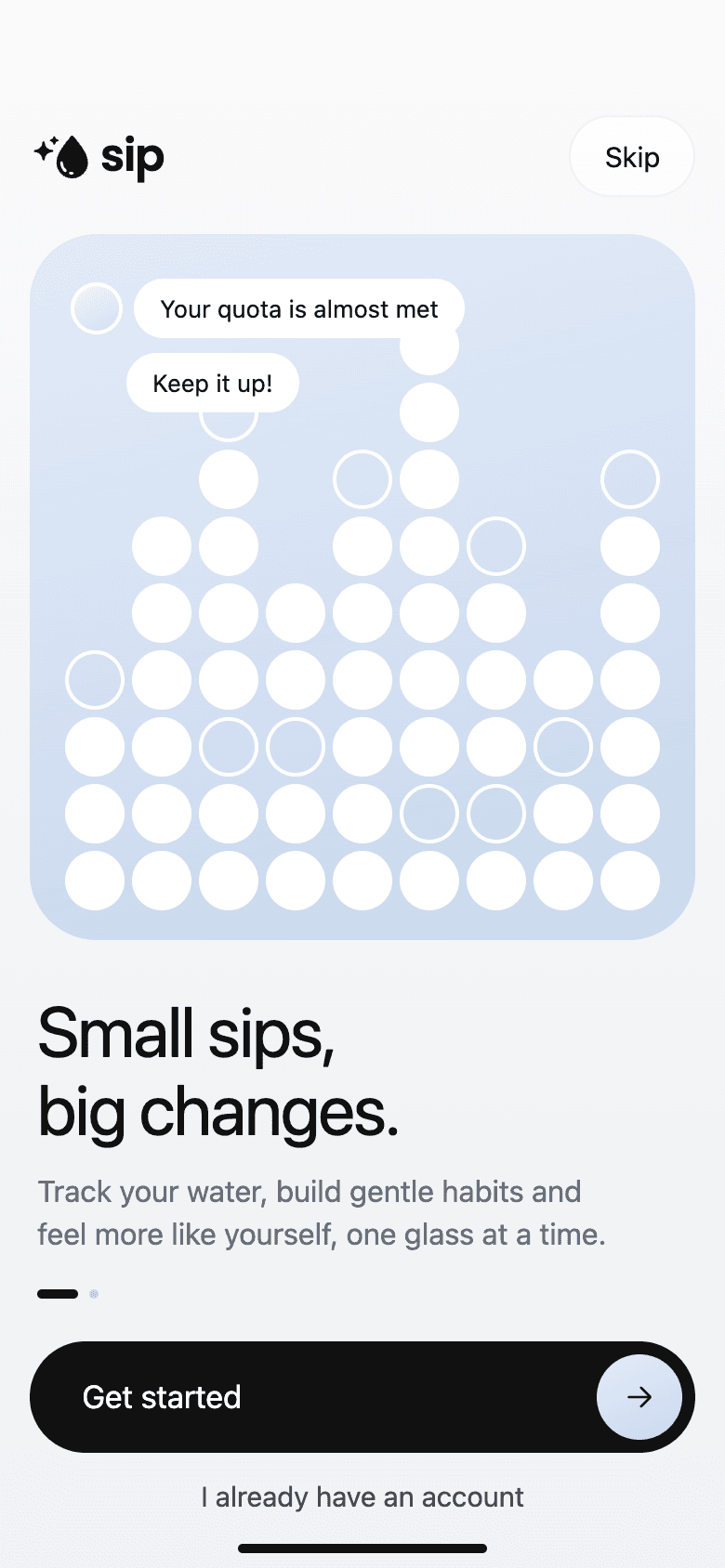
WelcomeSmall sips, big changes. 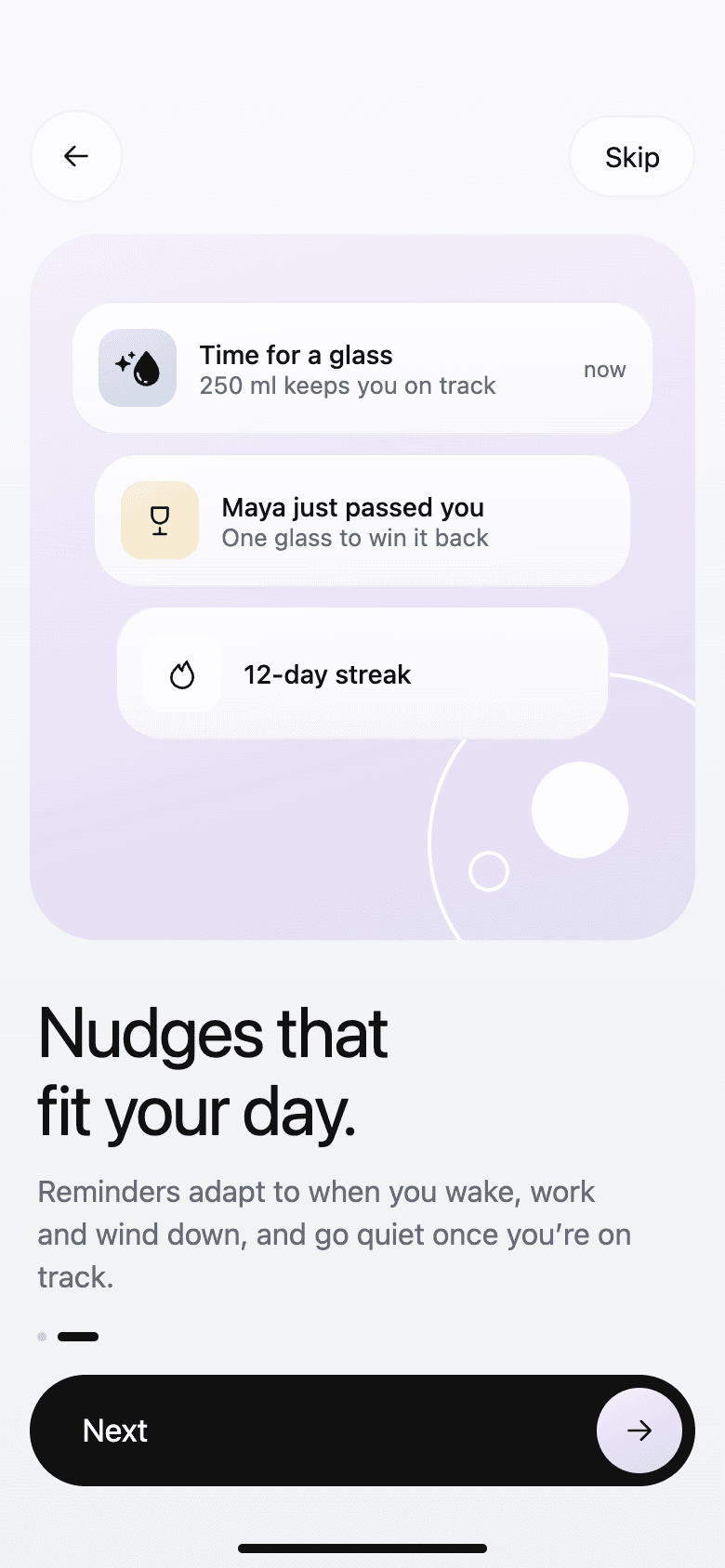
Reminders introNudges that fit the person's day. 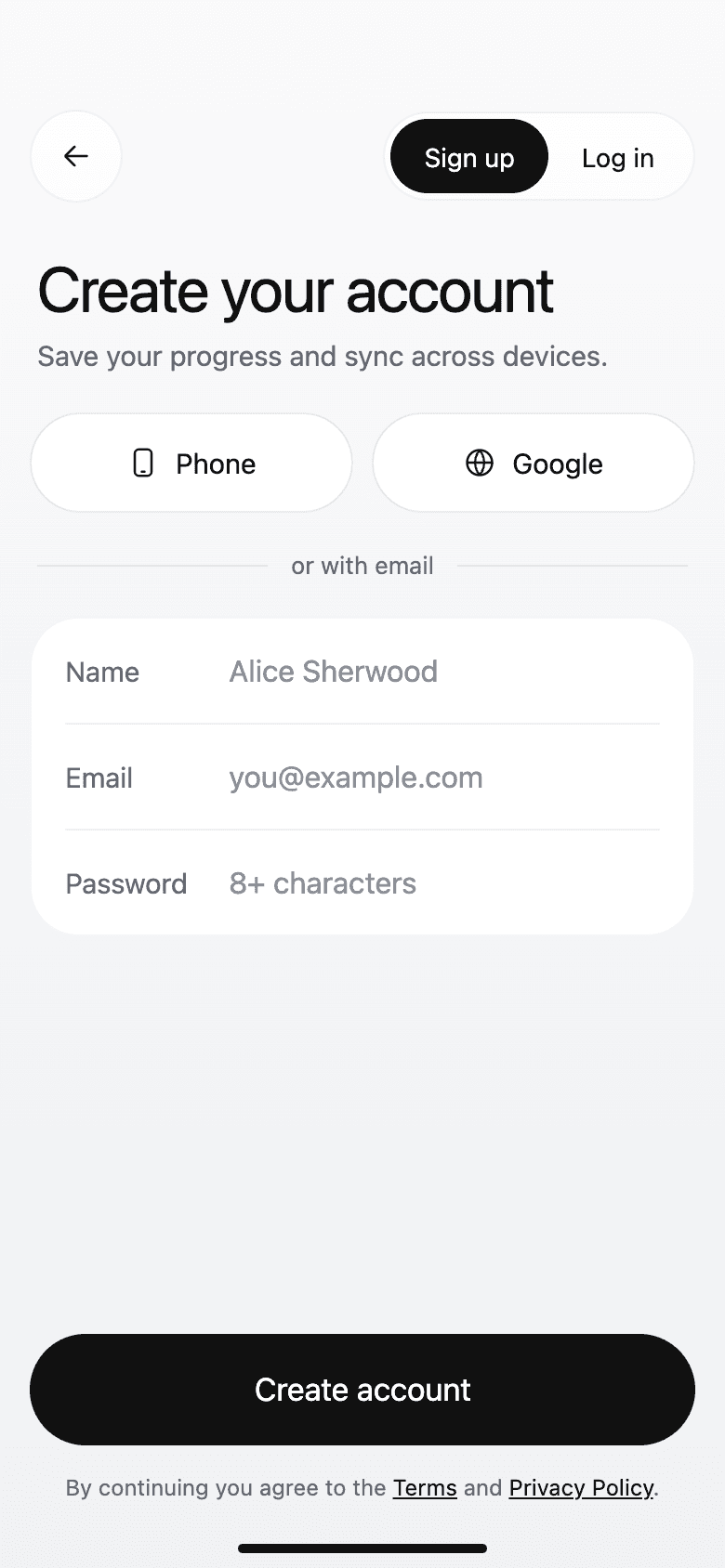
Sign upPhone, Google, or email. 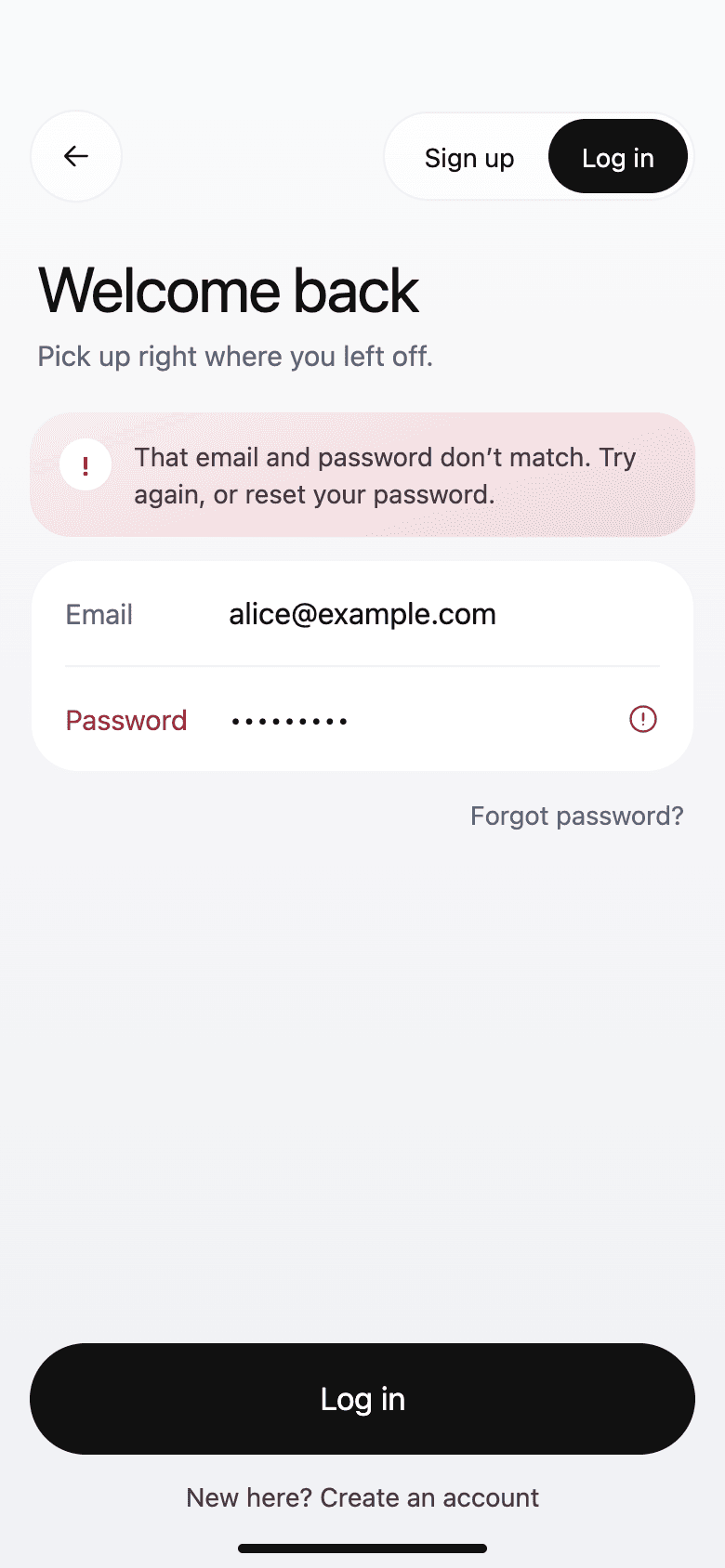
Log-in errorSays what went wrong and how to fix it. 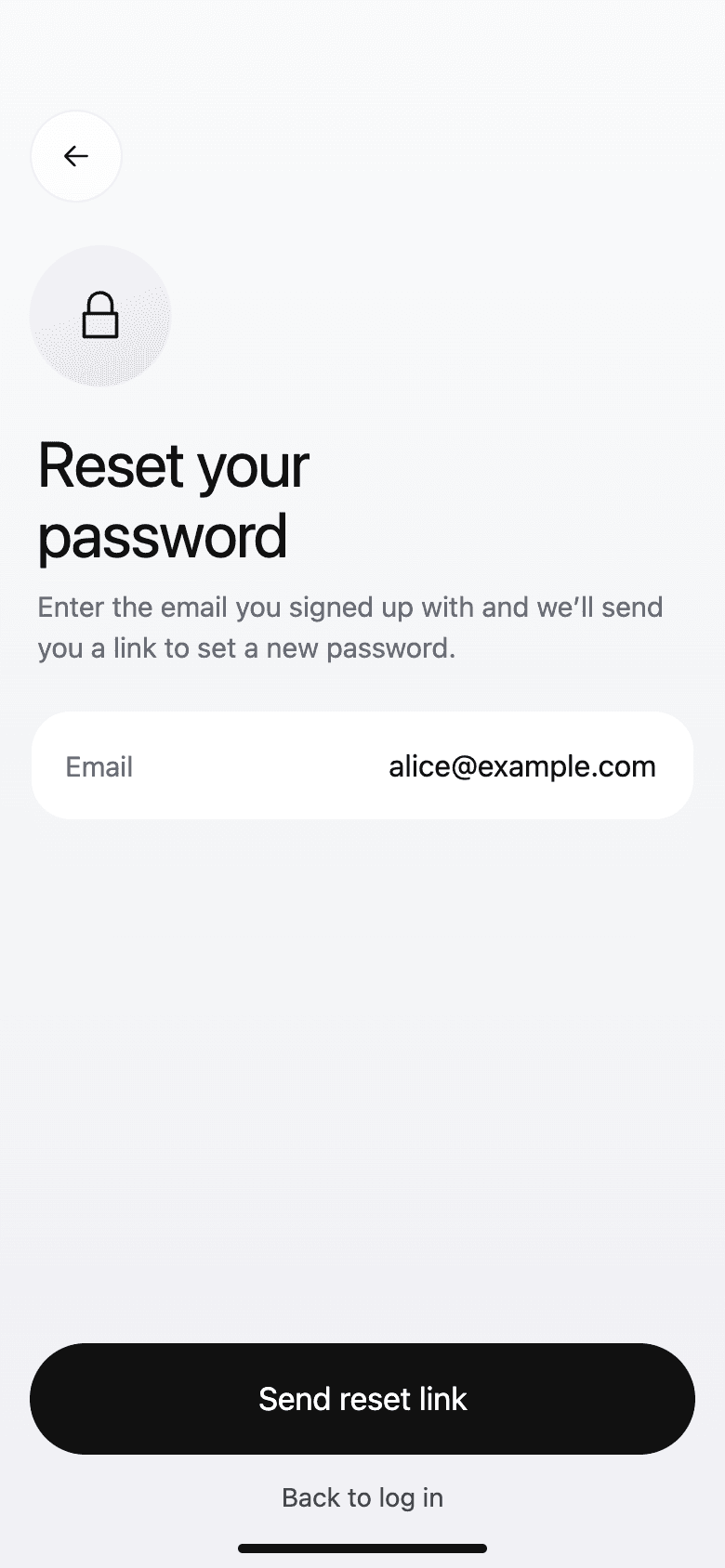
Reset passwordA link by email, and back to log in. 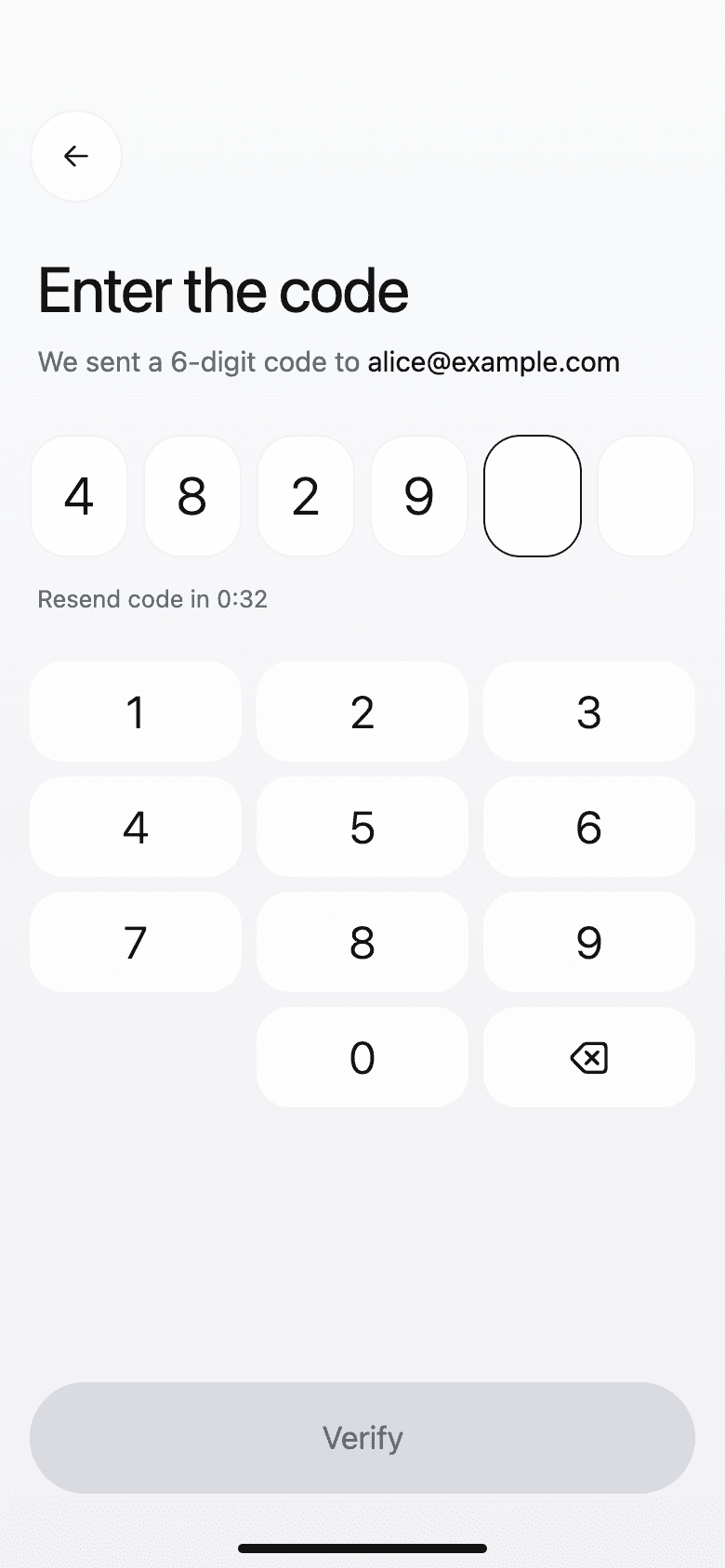
Verify emailA six-digit code with its own keypad. 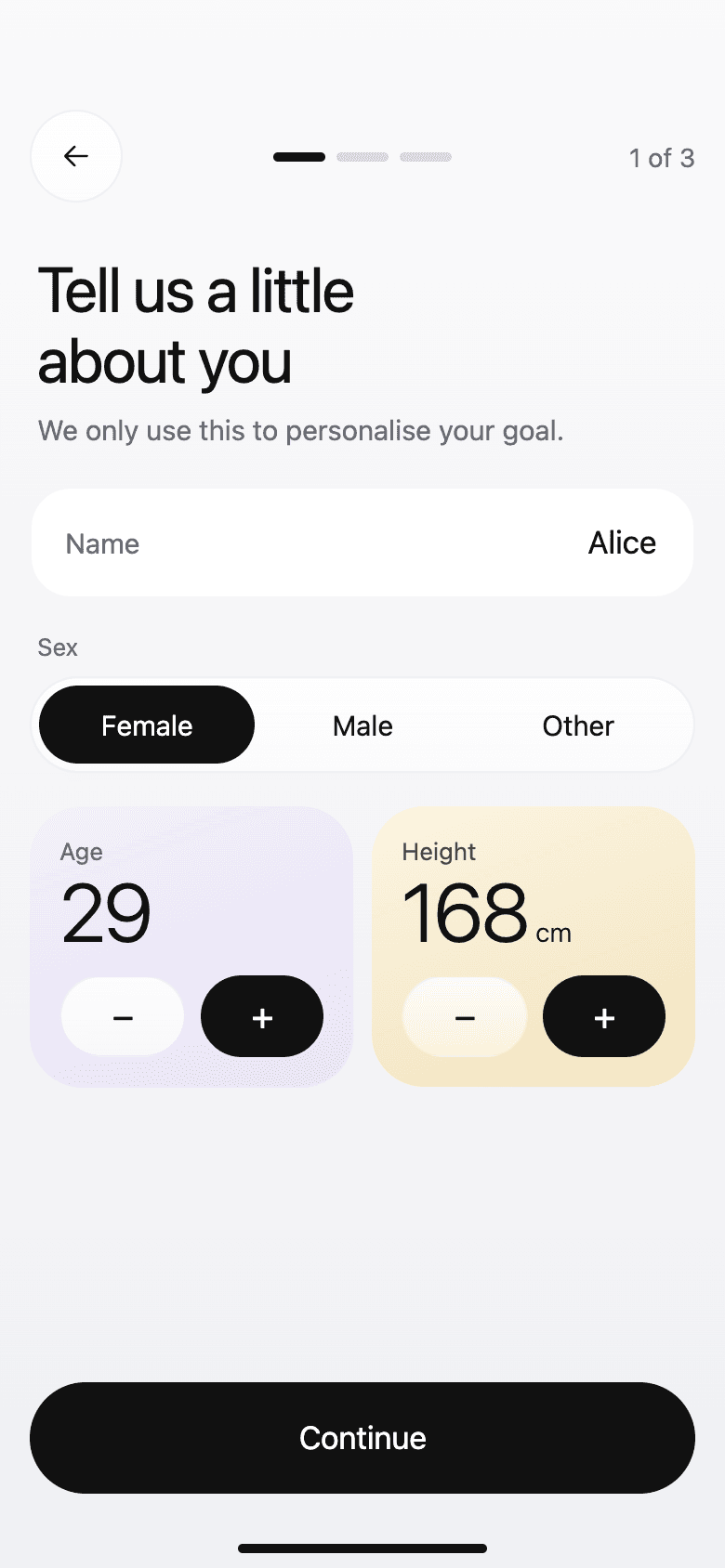
About youOnly what's needed to set the goal. 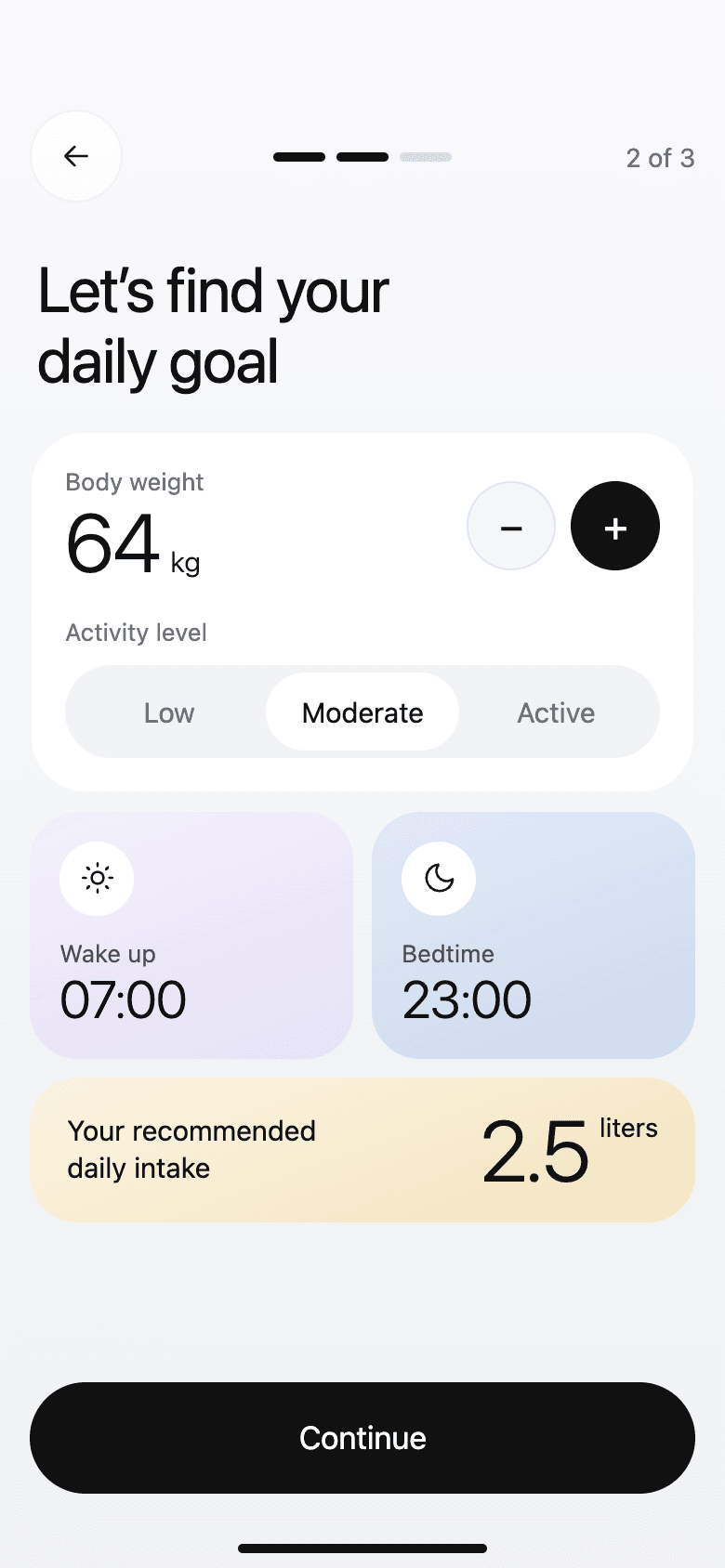
Daily goalWeight, activity, and waking hours. 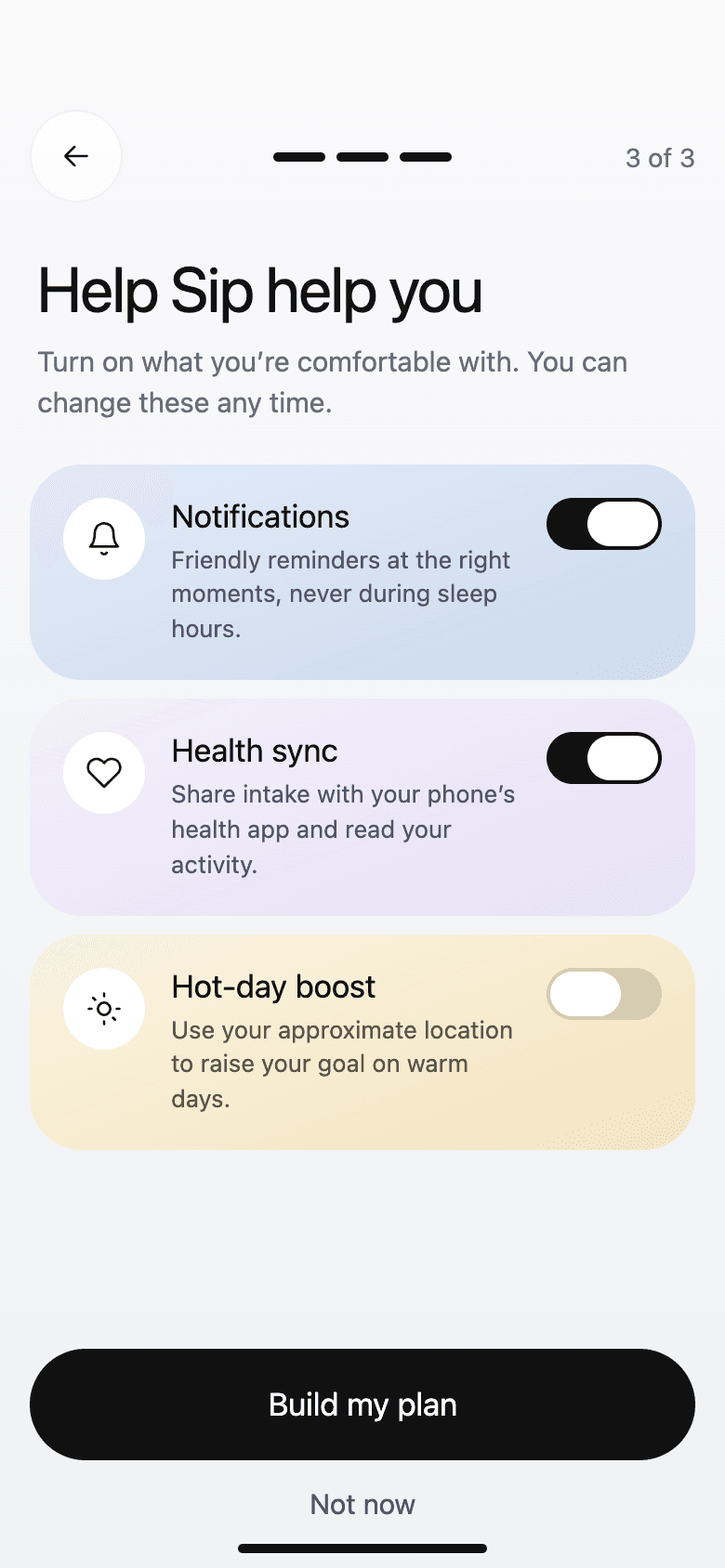
PermissionsEach with its reason, all optional. 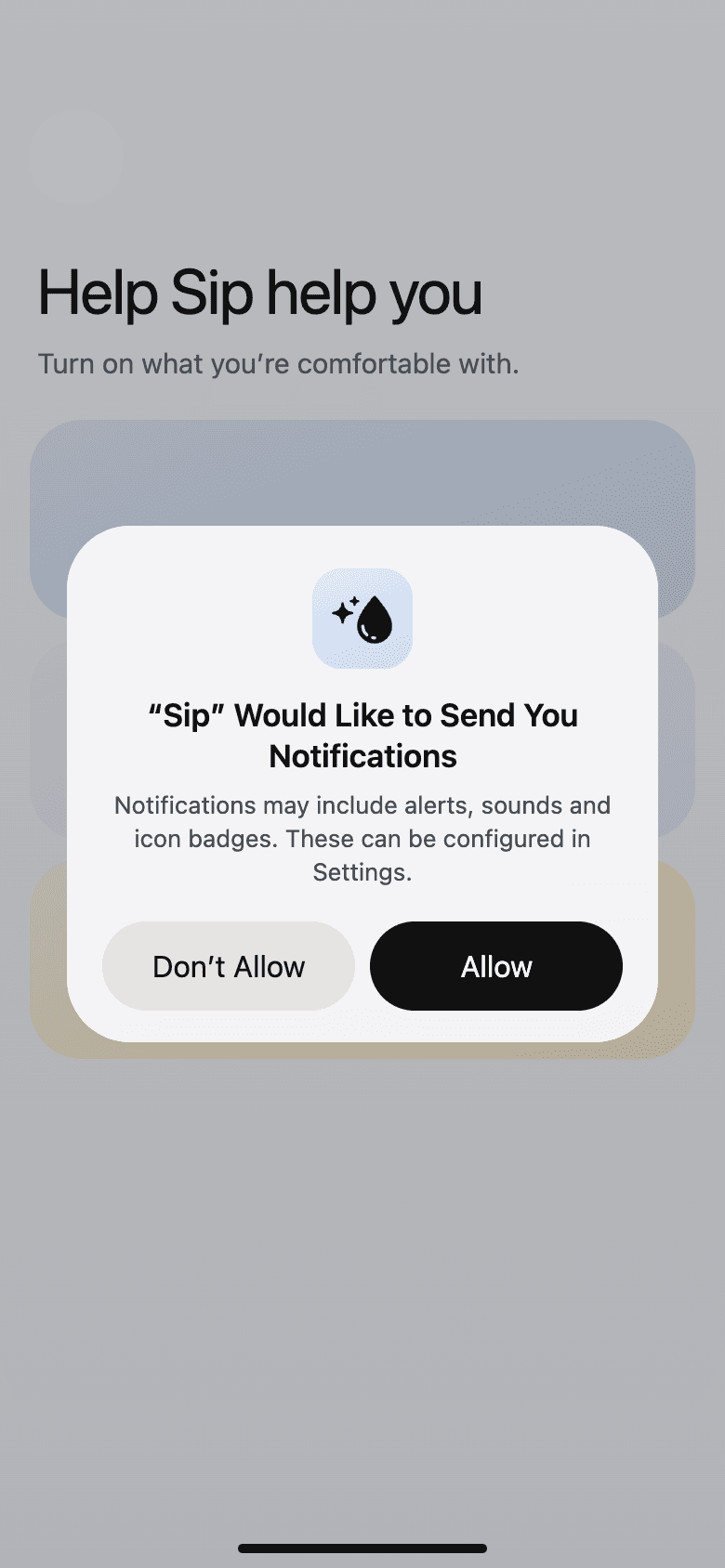
Notification promptThe system prompt, shown in context. 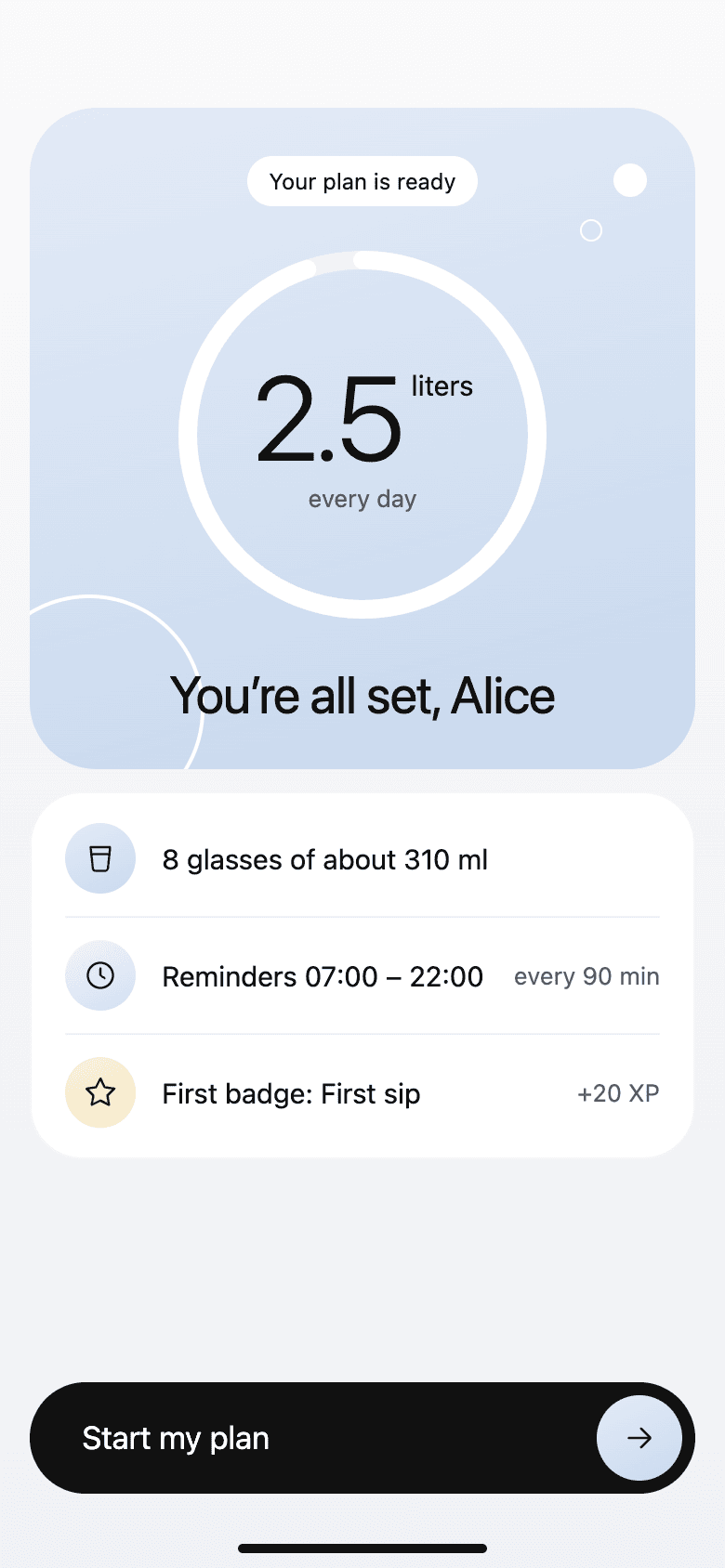
Your planThe goal, the glasses, and the reminders.
Home, in every state
The problemHome screens are usually designed for a perfect afternoon. Real use includes the first morning, a dropped connection, and a goal that's already met.
What we did
- On the first morning, home becomes a short setup list with one button to log the first glass.
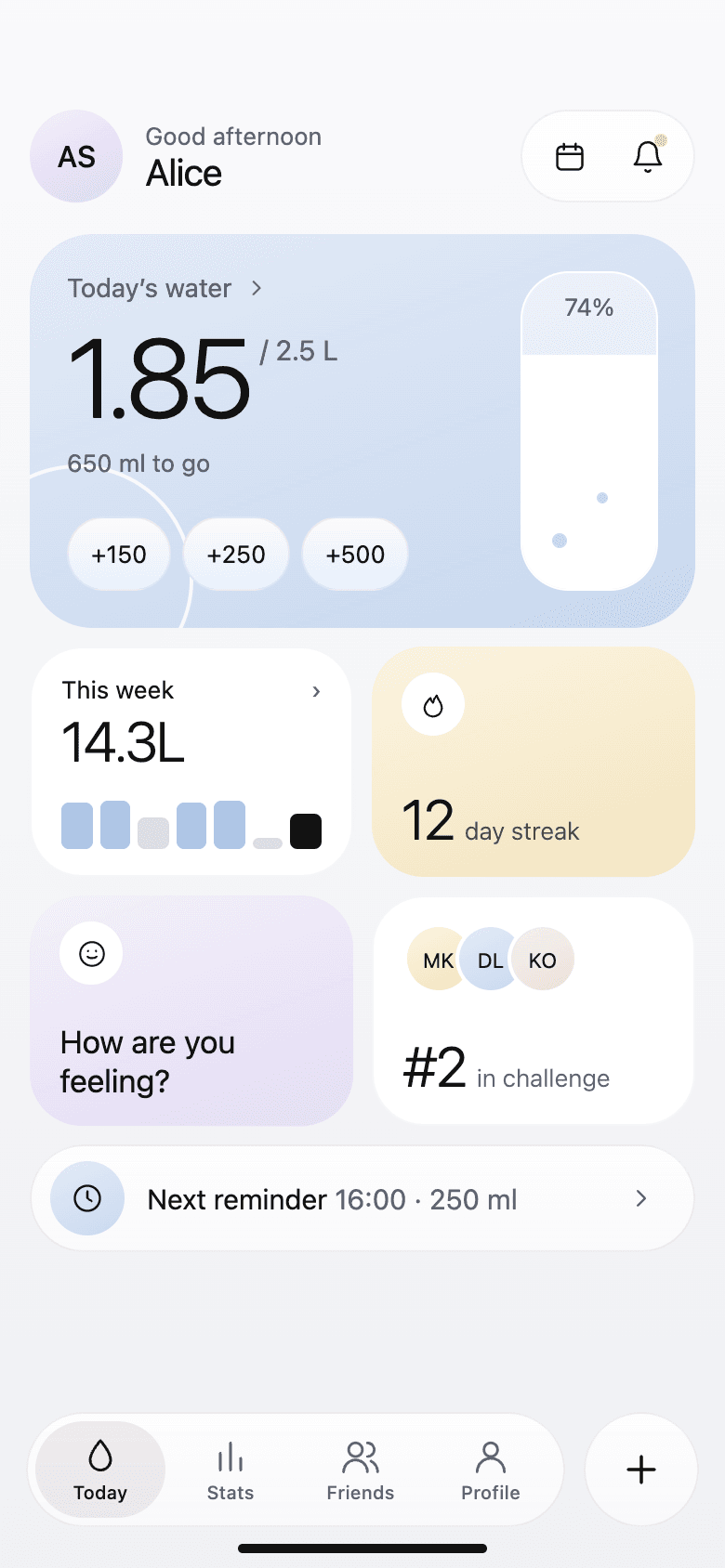
- During the day it shows the total, what's left, quick-add buttons, the streak, and the next reminder.
- When the goal is met, reminders pause for the day, and the last drink can be undone from a toast.
- Offline, drinks are saved on the phone and sync later. Loading and dark mode have their own designs.
HomeToday's water, quick adds, streak, and next reminder. 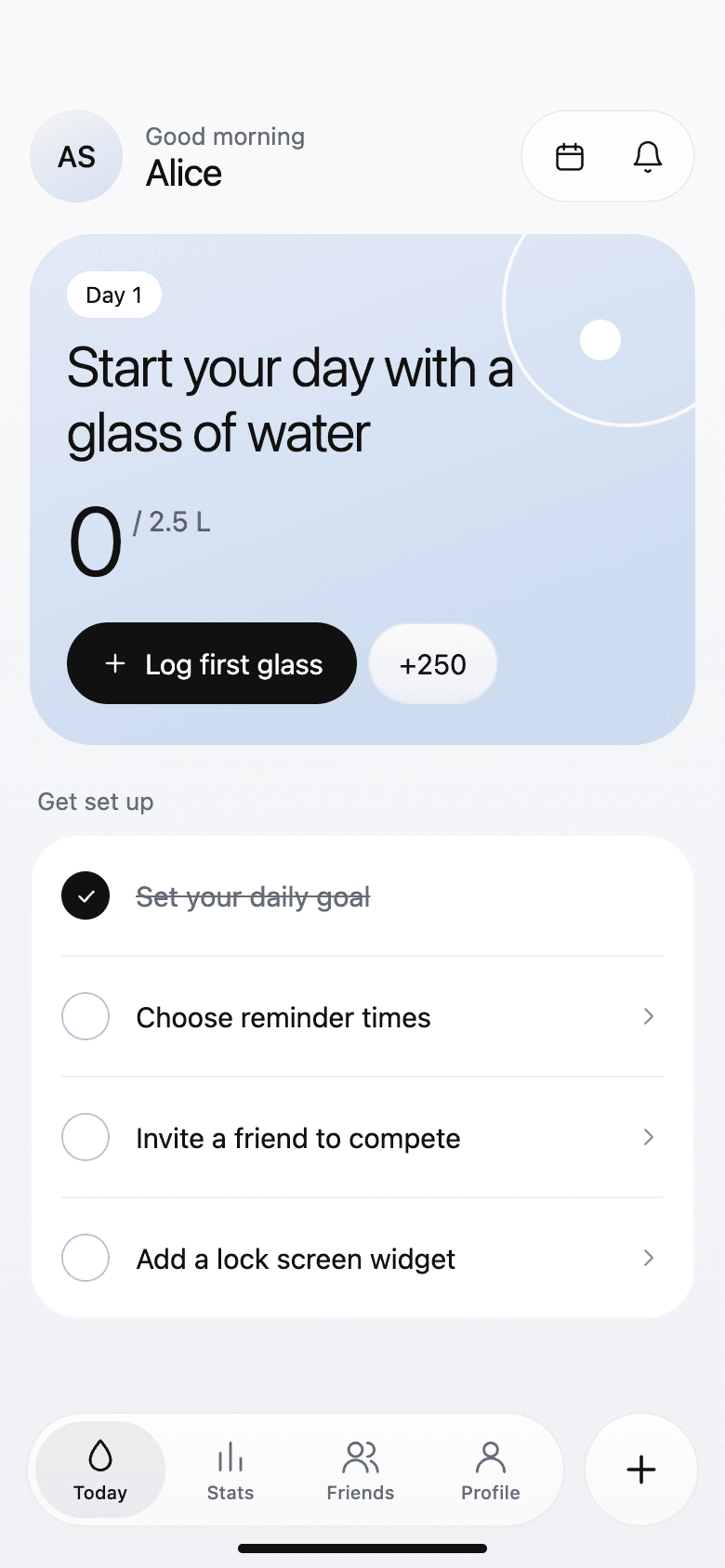
First morningA setup list and one button to start. 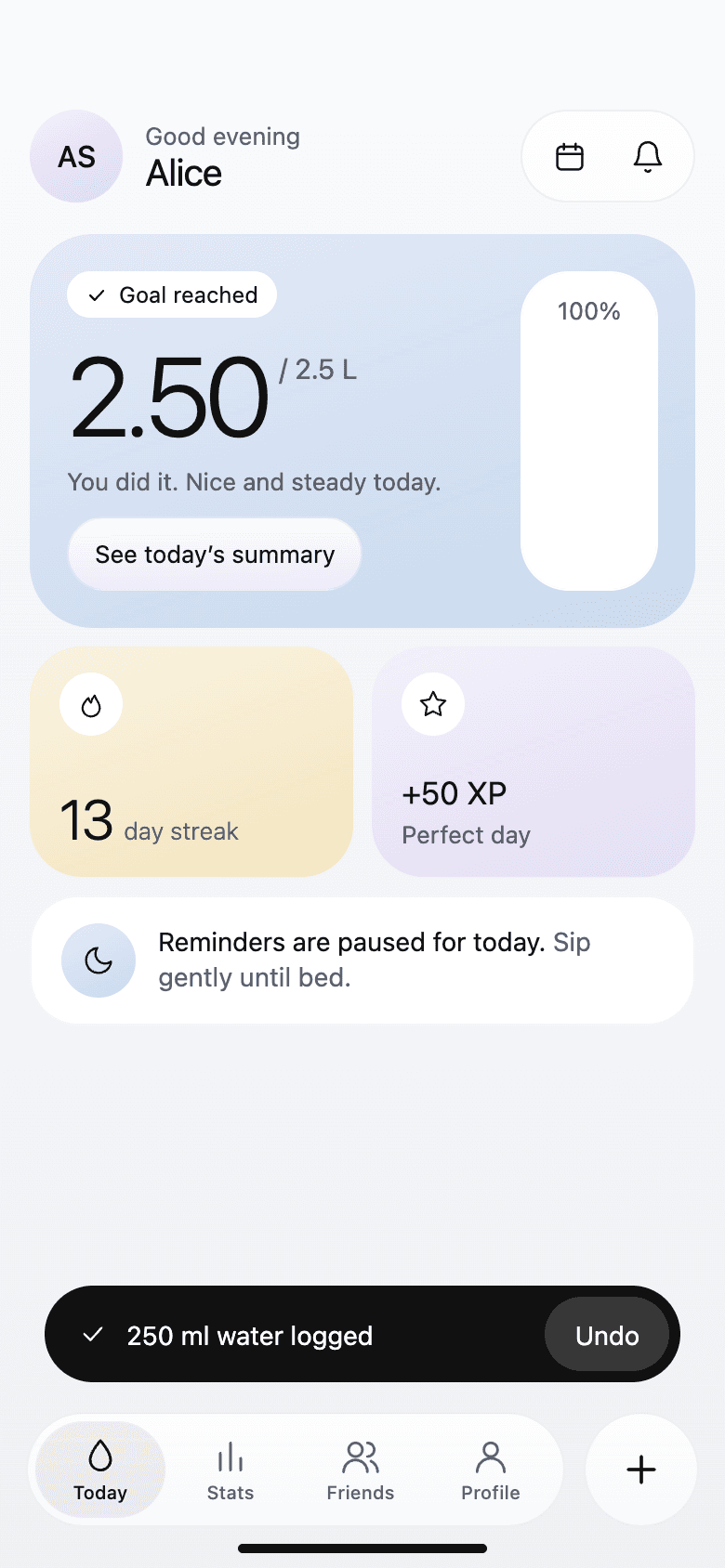
Goal metReminders pause, with an undo for the last drink. 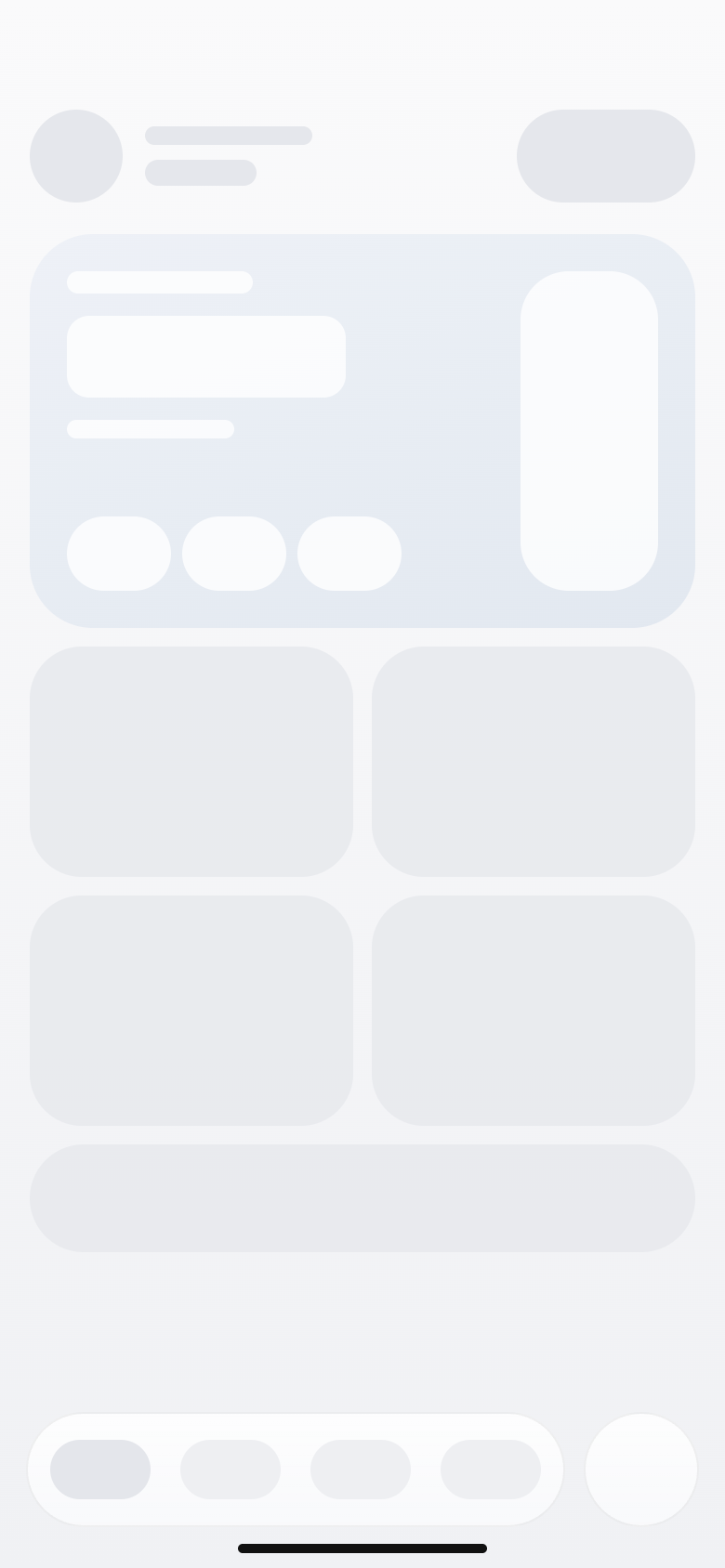
LoadingThe layout holds while data arrives. 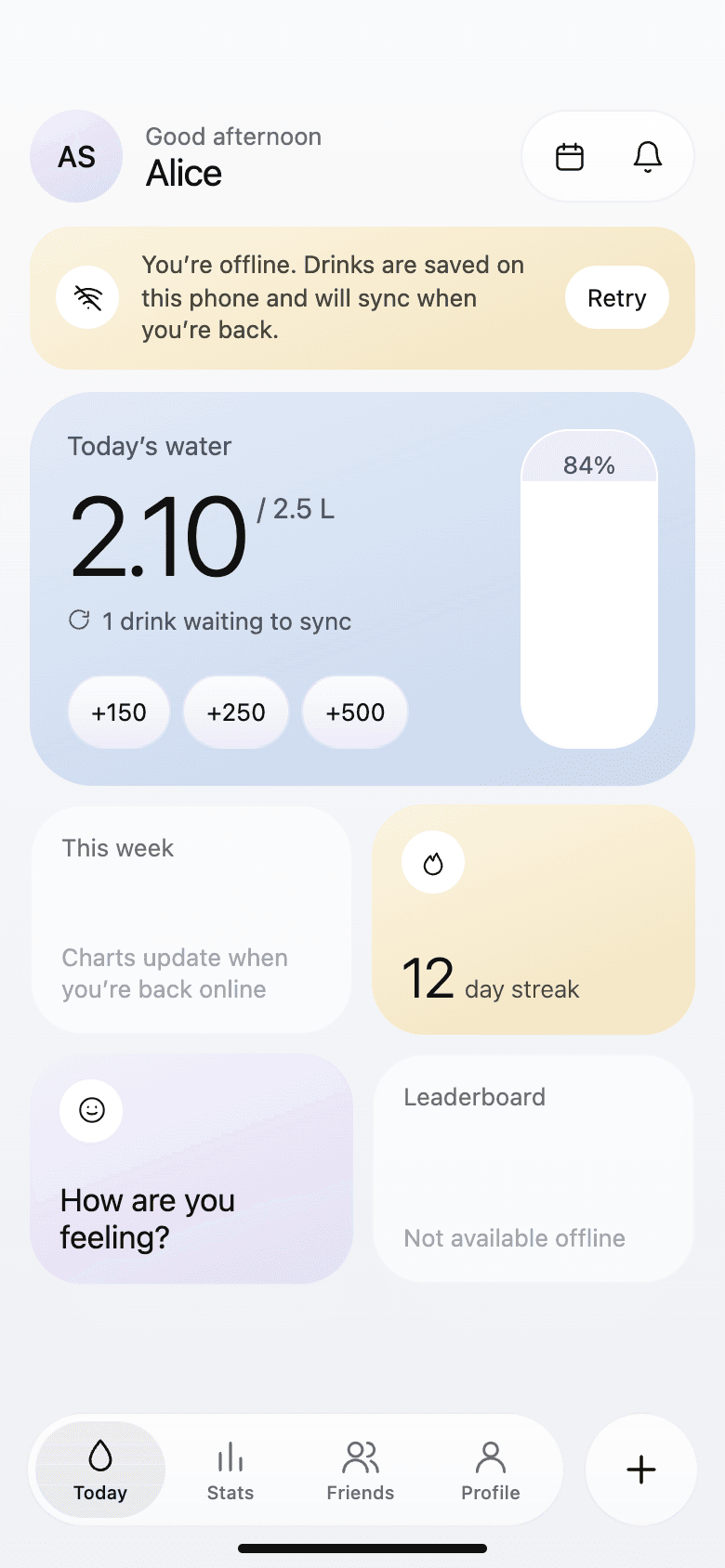
OfflineDrinks save on the phone and sync later. 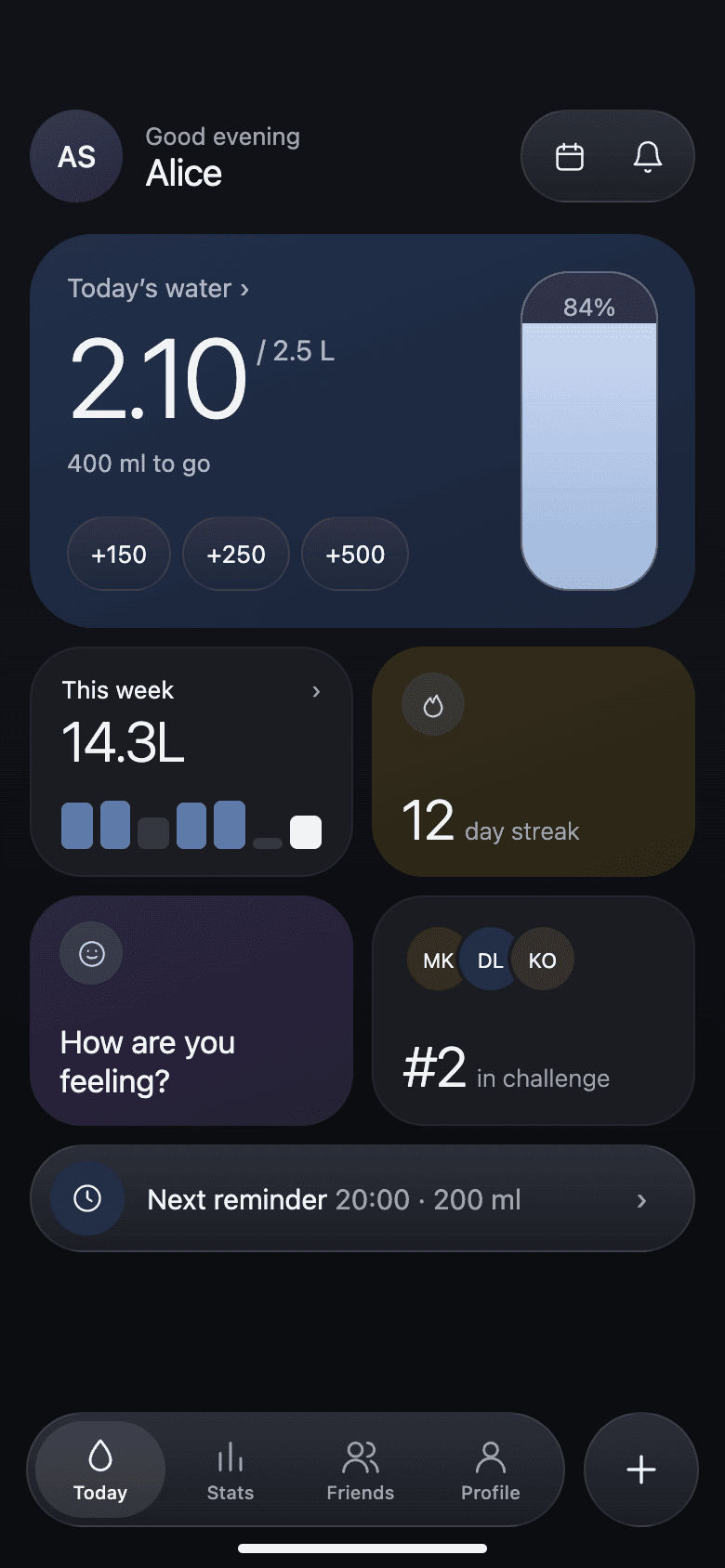
Dark modeThe same home, for evenings.
Logging drinks
The problemDetailed logging is accurate, but people don't keep it up.
What we did
- The drink sheet has water, tea, coffee, juice, and milk, with quick sizes and the amount that counts toward the goal.
- Custom drinks get their own name, color, icon, and how much of them counts as water.
- Today's log lists every drink with its time and what it counted for, and any entry can be edited or removed.
- Reaching the goal gets its own screen, with the streak and the points earned.
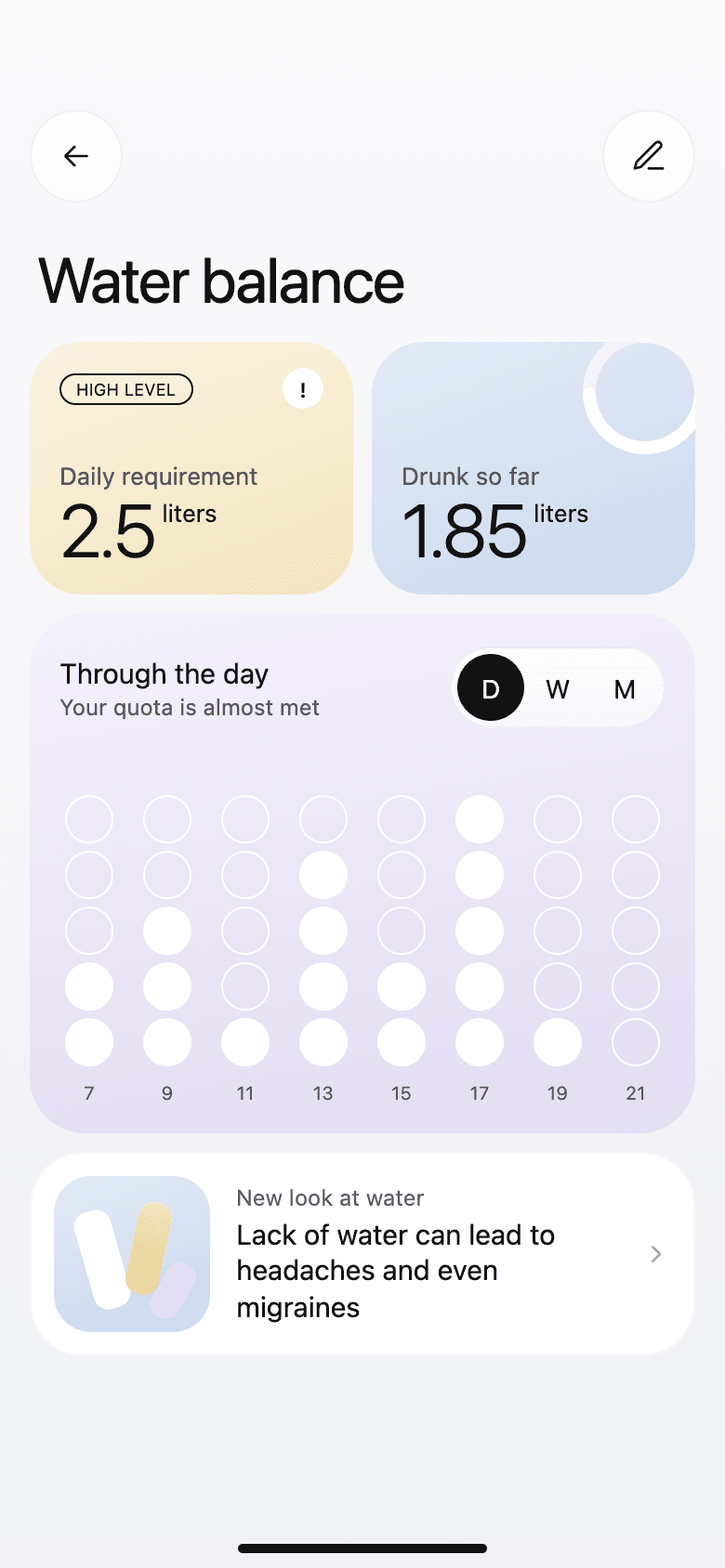
Water balanceToday's intake against the goal, hour by hour. 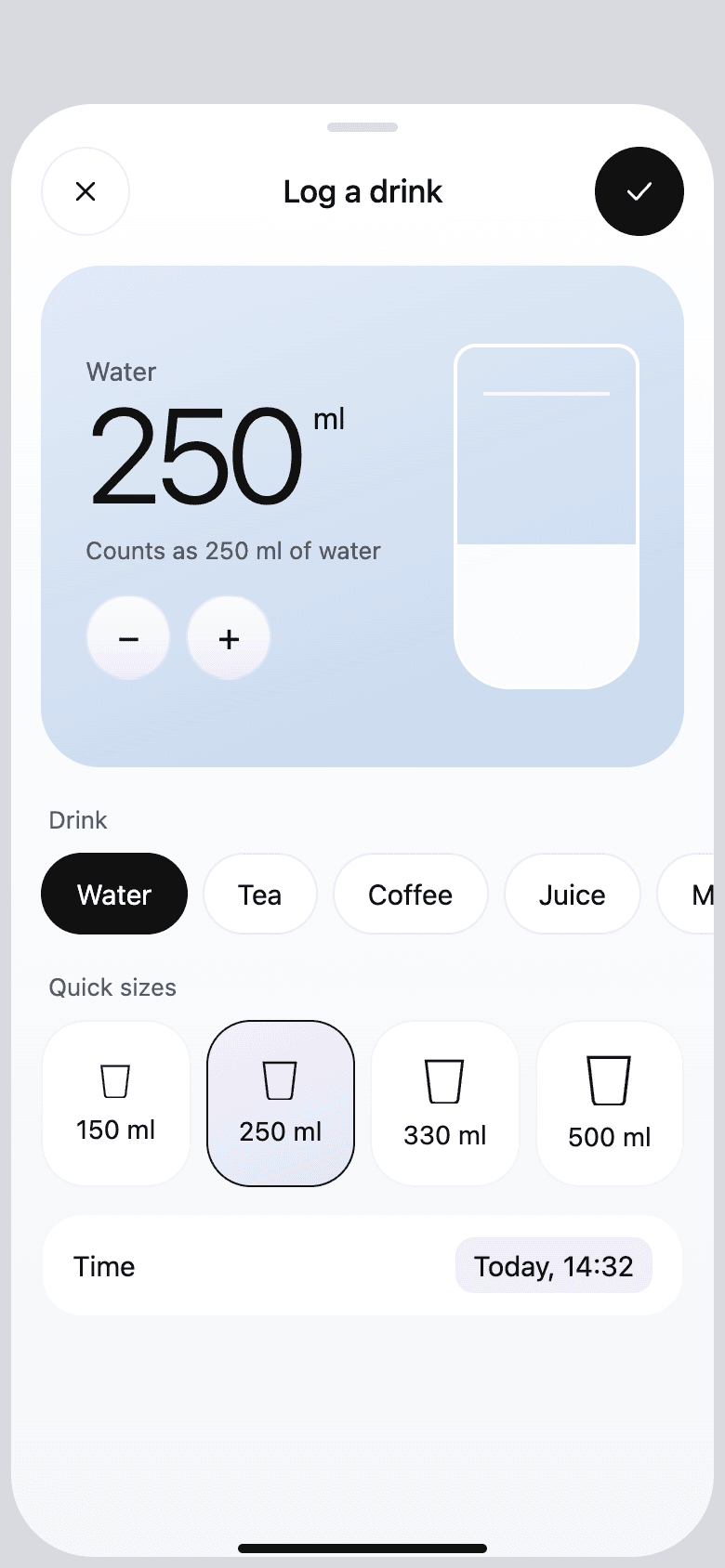
Log a drinkType, size, and what it counts as. 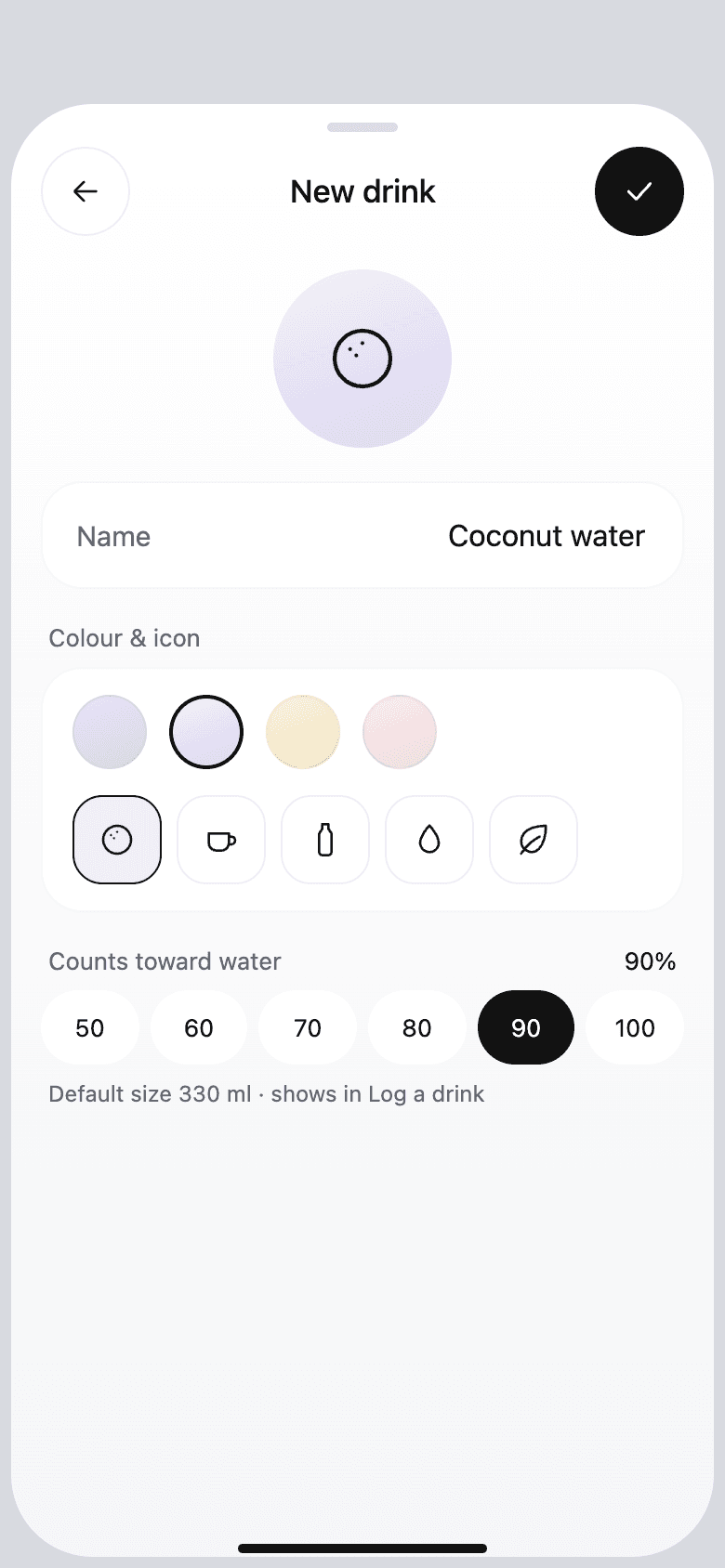
Custom drinkName, icon, and how much counts. 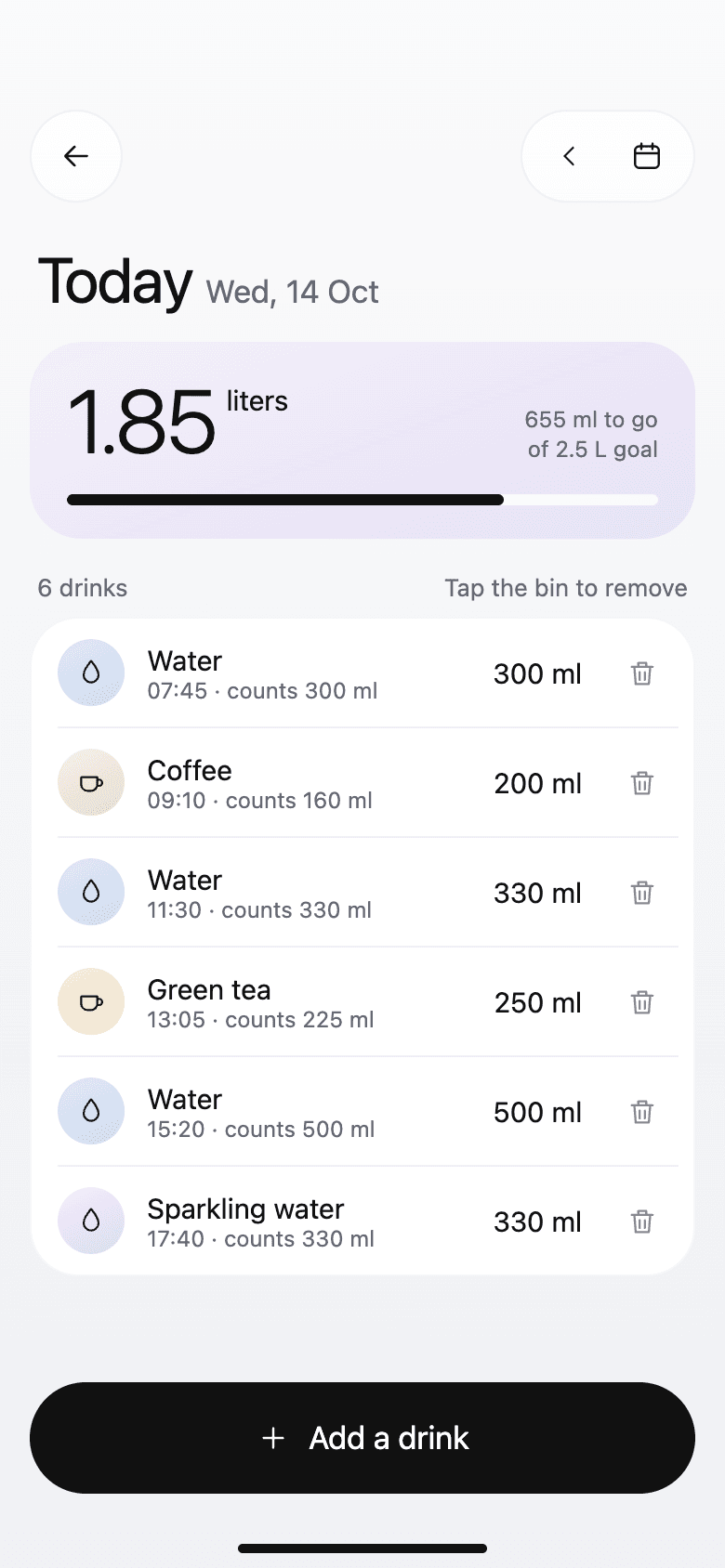
Today's logEvery drink, with what it counted for. 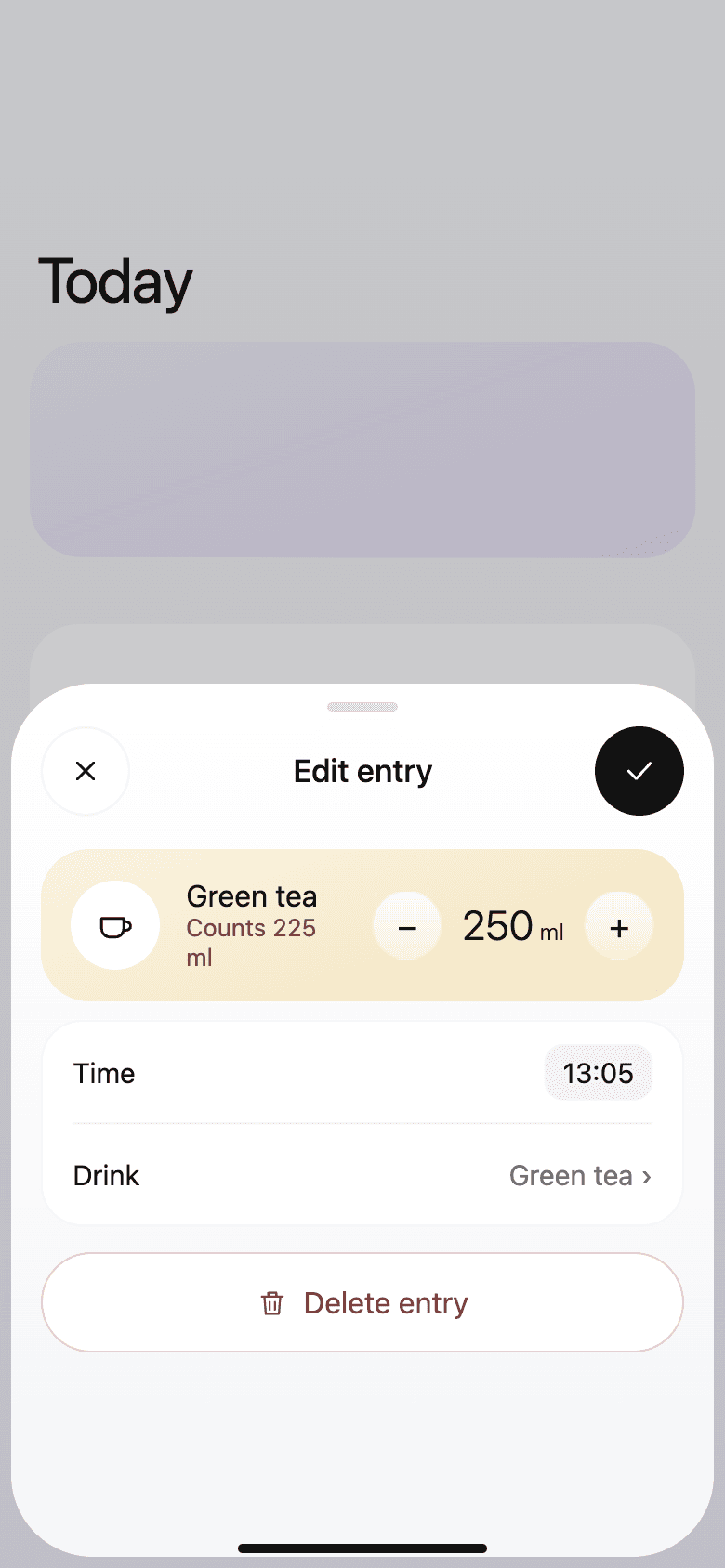
Edit entryChange the amount, time, or drink. 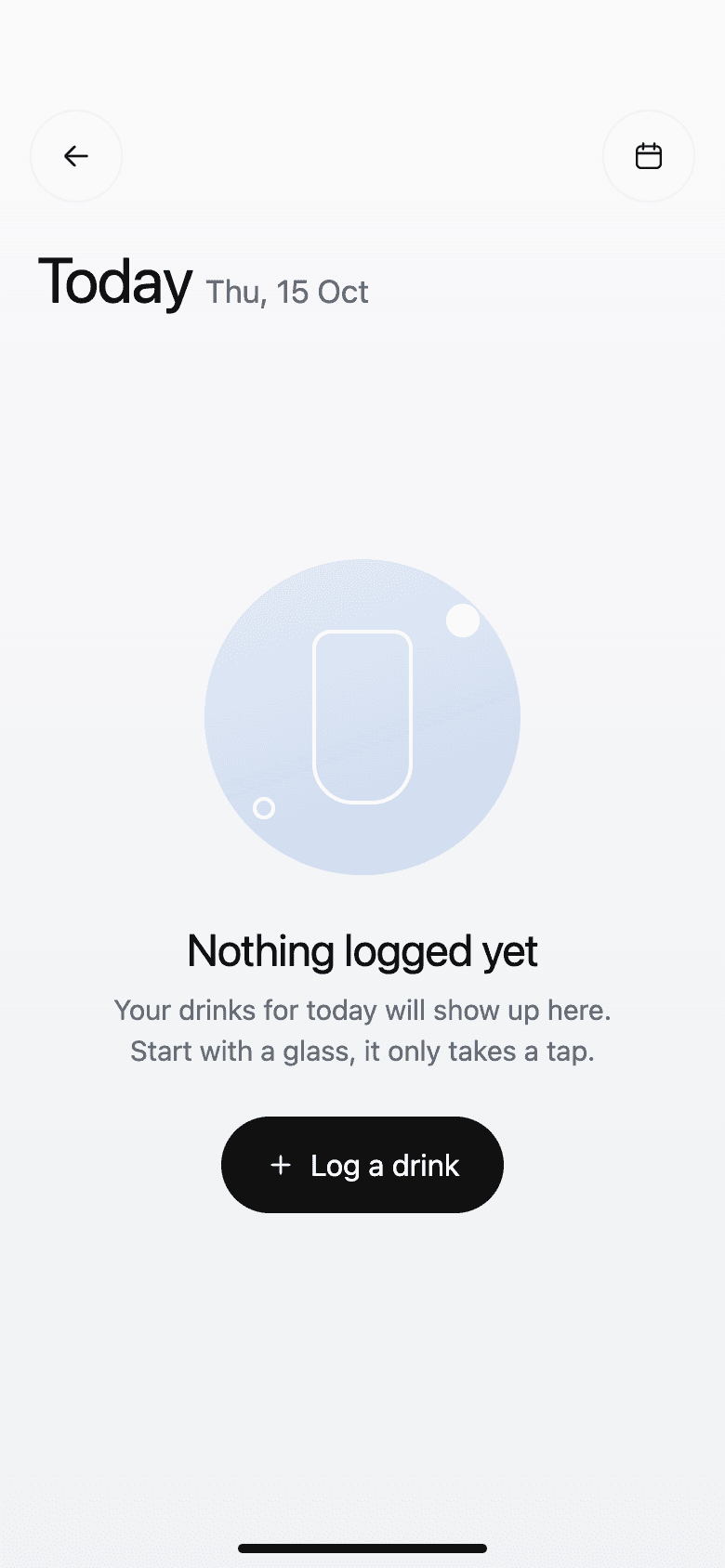
Empty logOne tap to start the day. 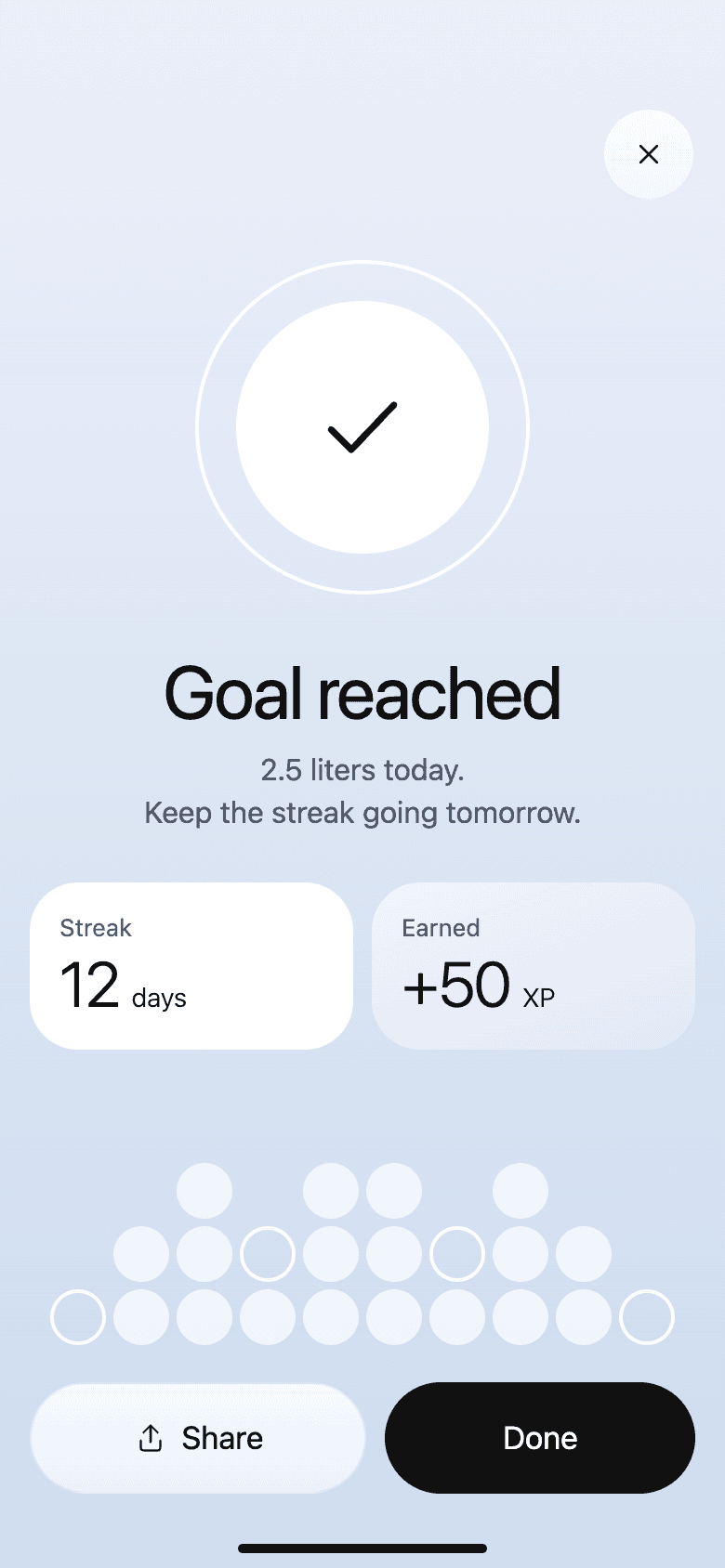
Goal reachedThe streak and the points earned. 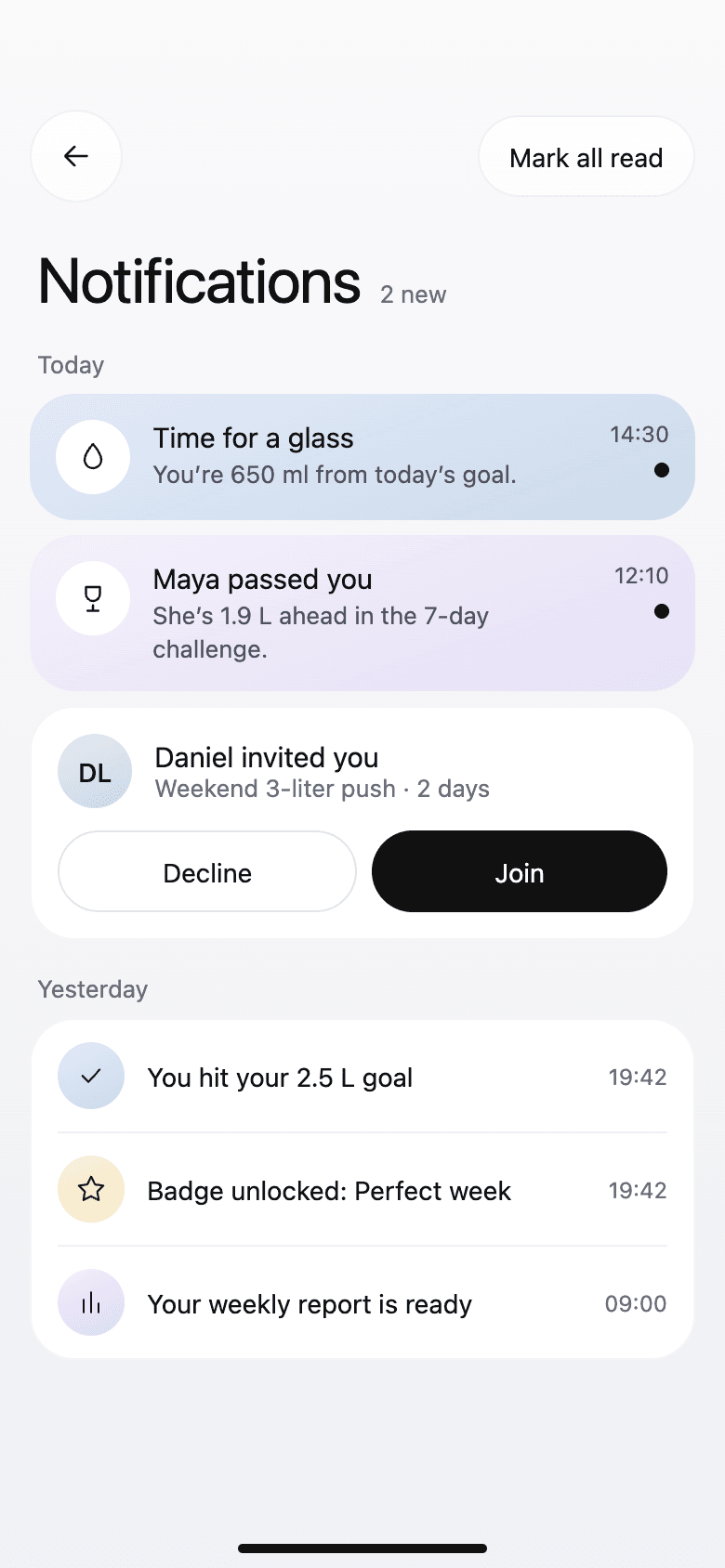
NotificationsReminders, friends, and badges in one list. 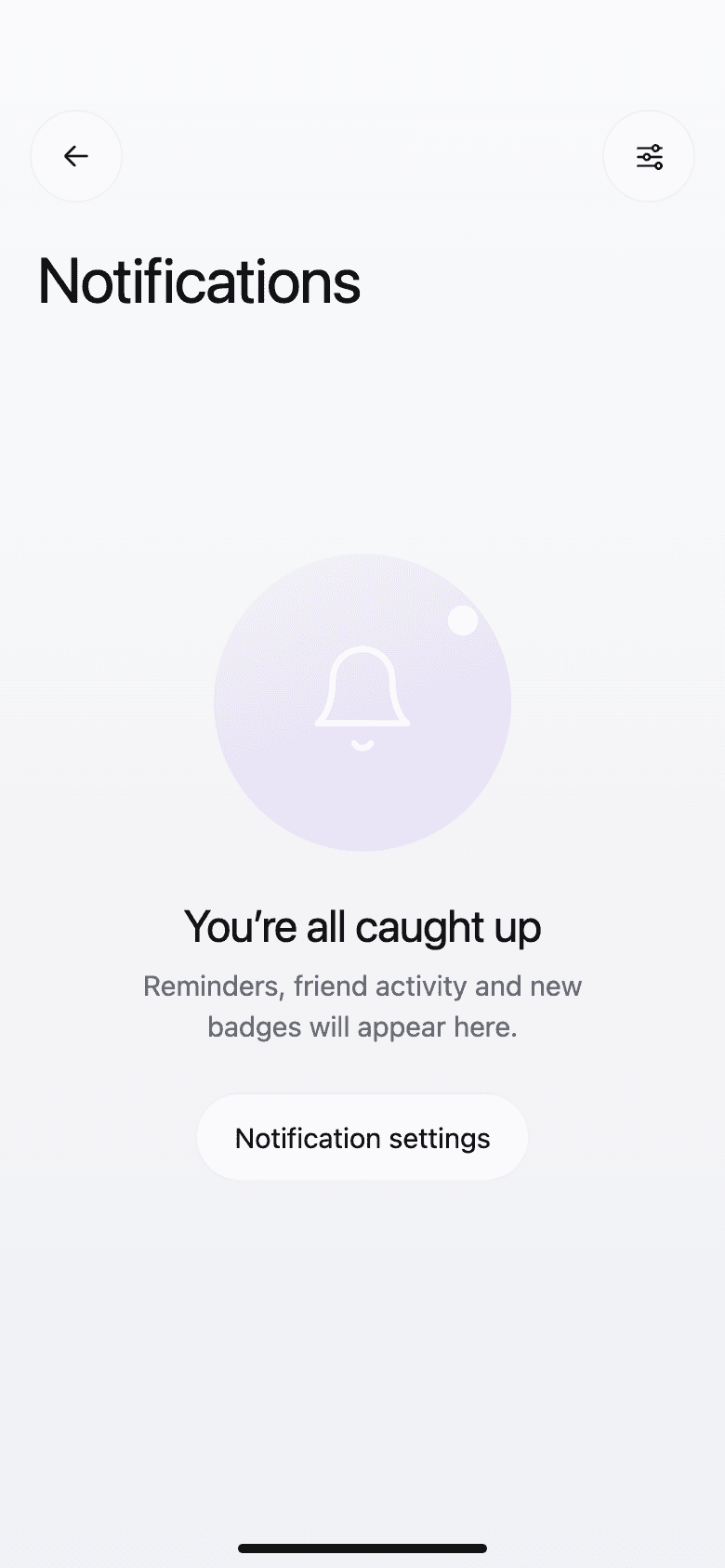
All caught upAn empty state that points to settings.
Progress and wellness
The problemLiters per day is a dull number. People keep going when they can see how it connects to how they feel.
What we did
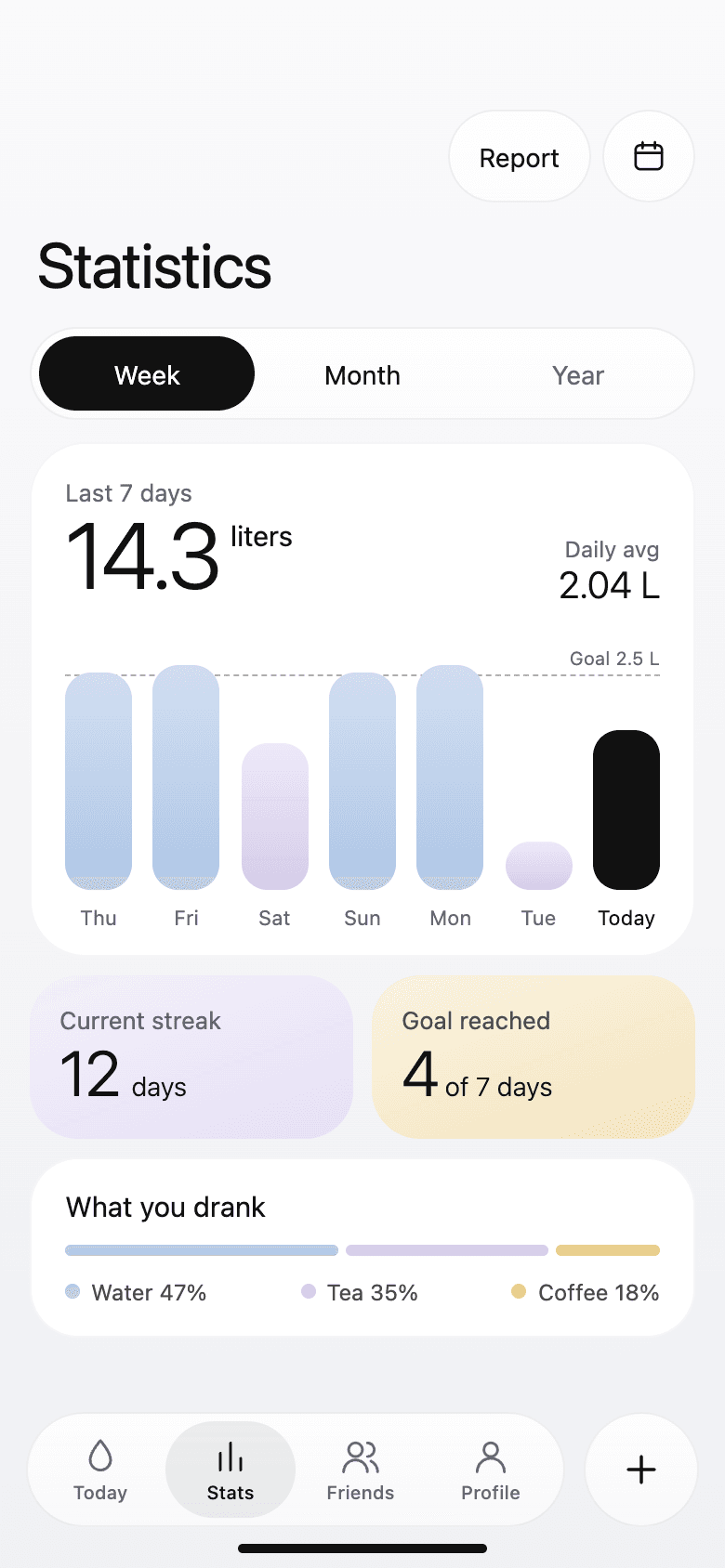
- Week and month views show the total, the daily average, goal days, and the mix of drinks.
- The calendar marks each day as goal hit, close, or low, and each day opens to its drinks, mood, and sleep.
- The weekly report ends with one suggestion for next week, like a glass with dinner, and can add that reminder in a tap.
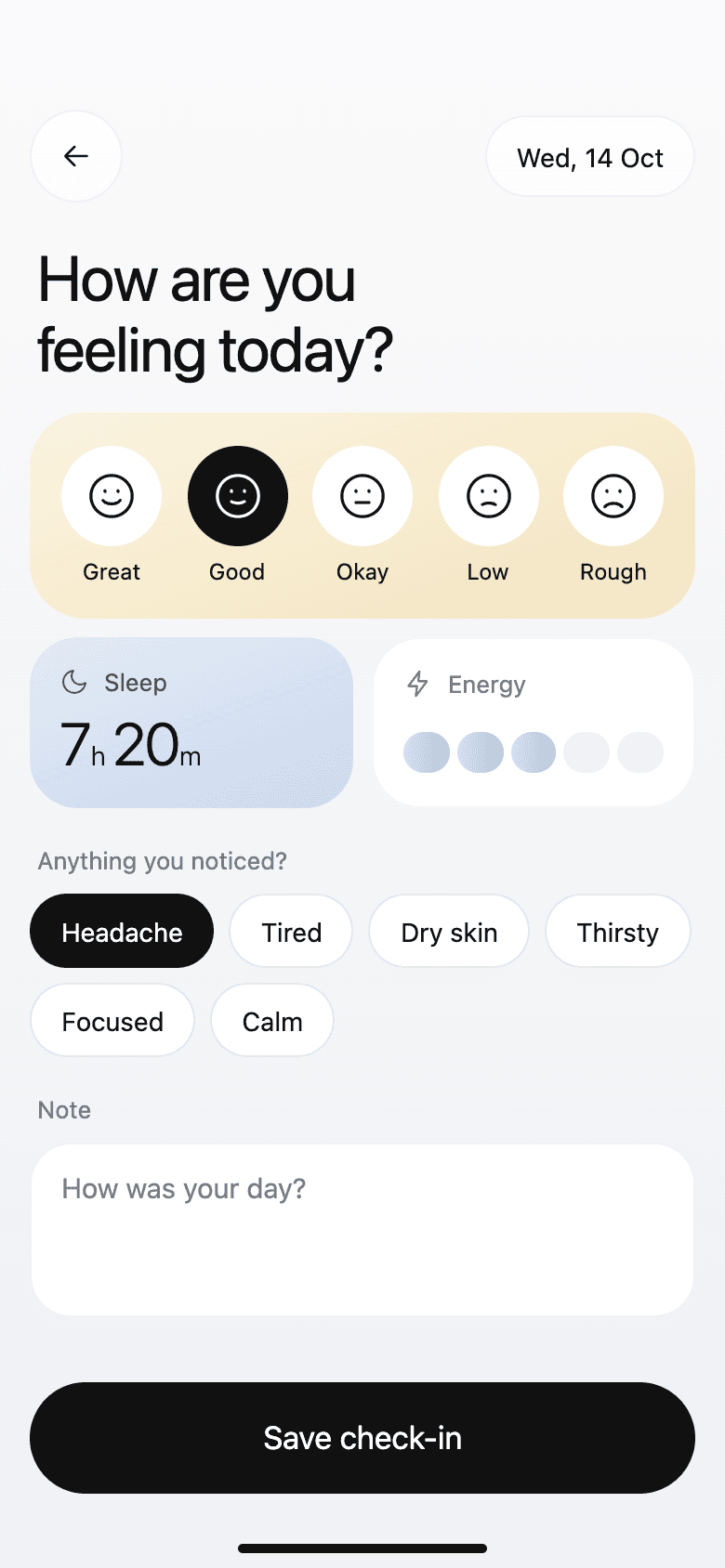
- A daily check-in records mood, sleep, energy, and symptoms. The app then points out patterns, such as feeling better on goal days.
Week statsTotal, average, streak, and drink mix. 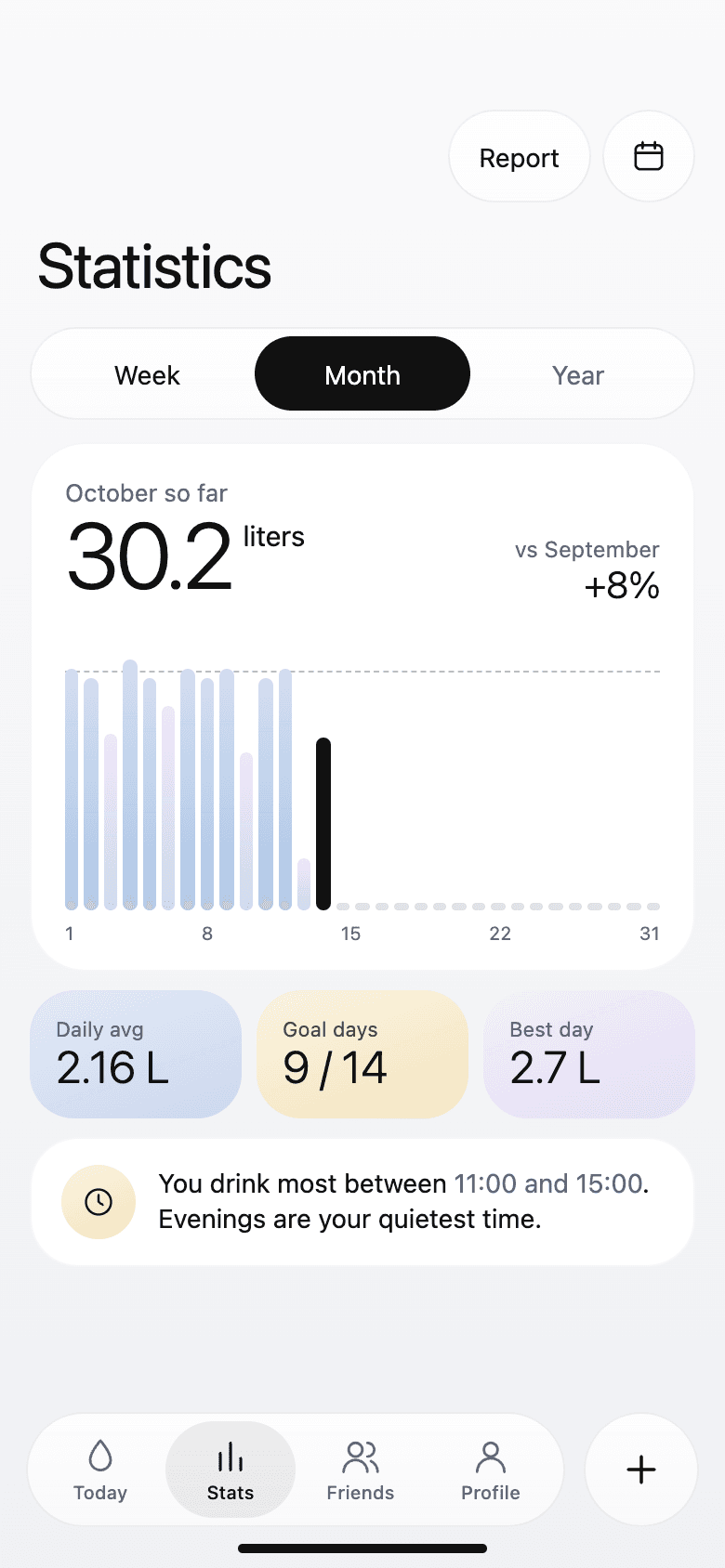
Month statsThe month so far, and when you drink most. 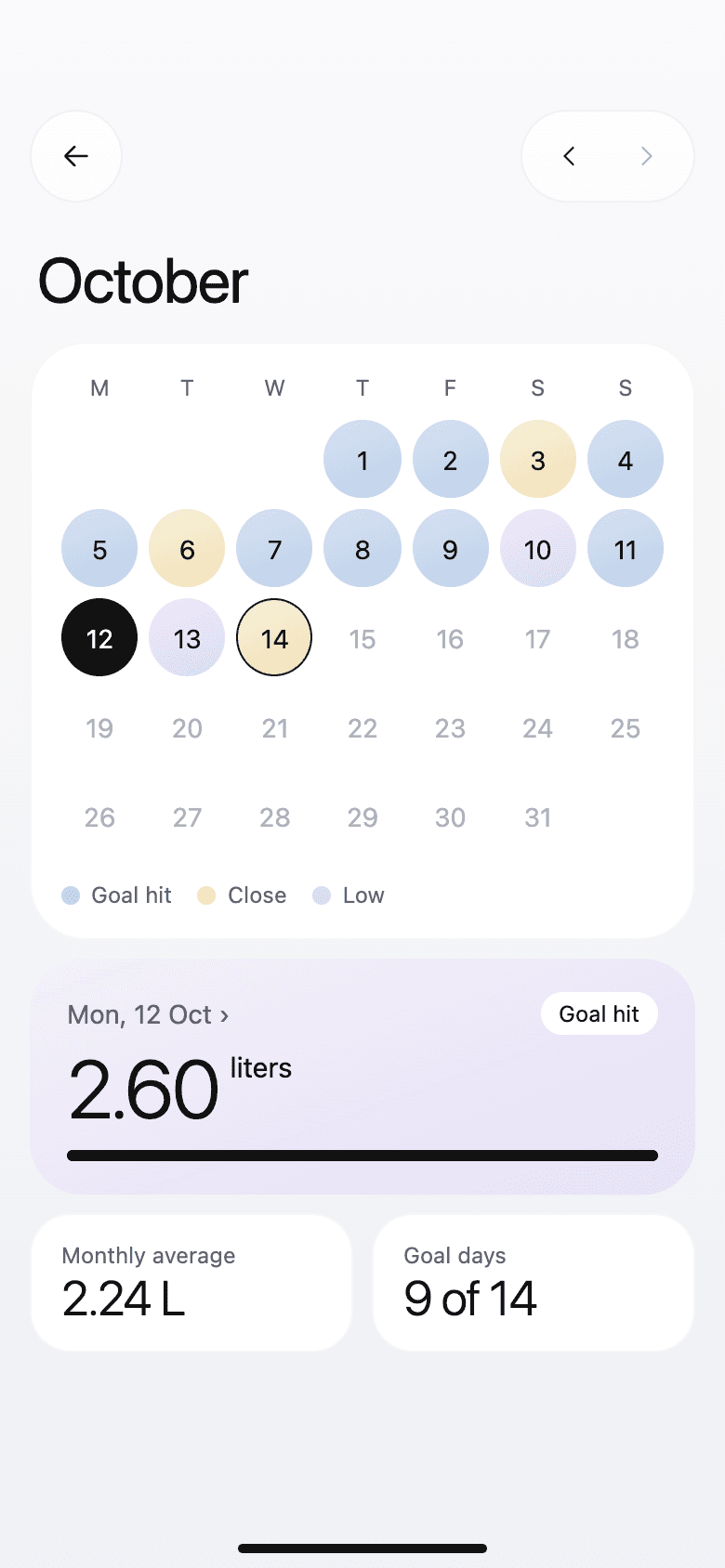
History calendarGoal hit, close, or low, day by day. 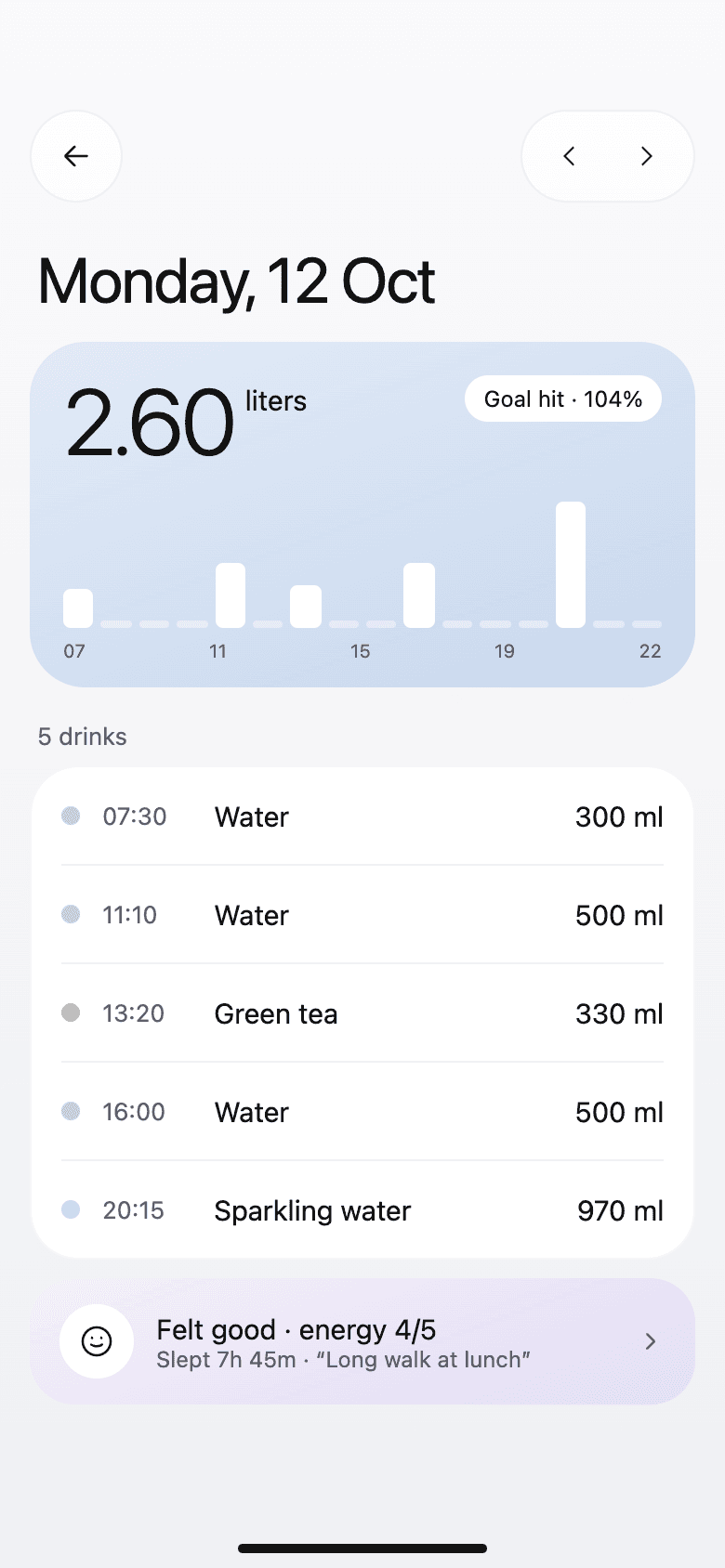
Day detailDrinks, mood, and sleep for one day. 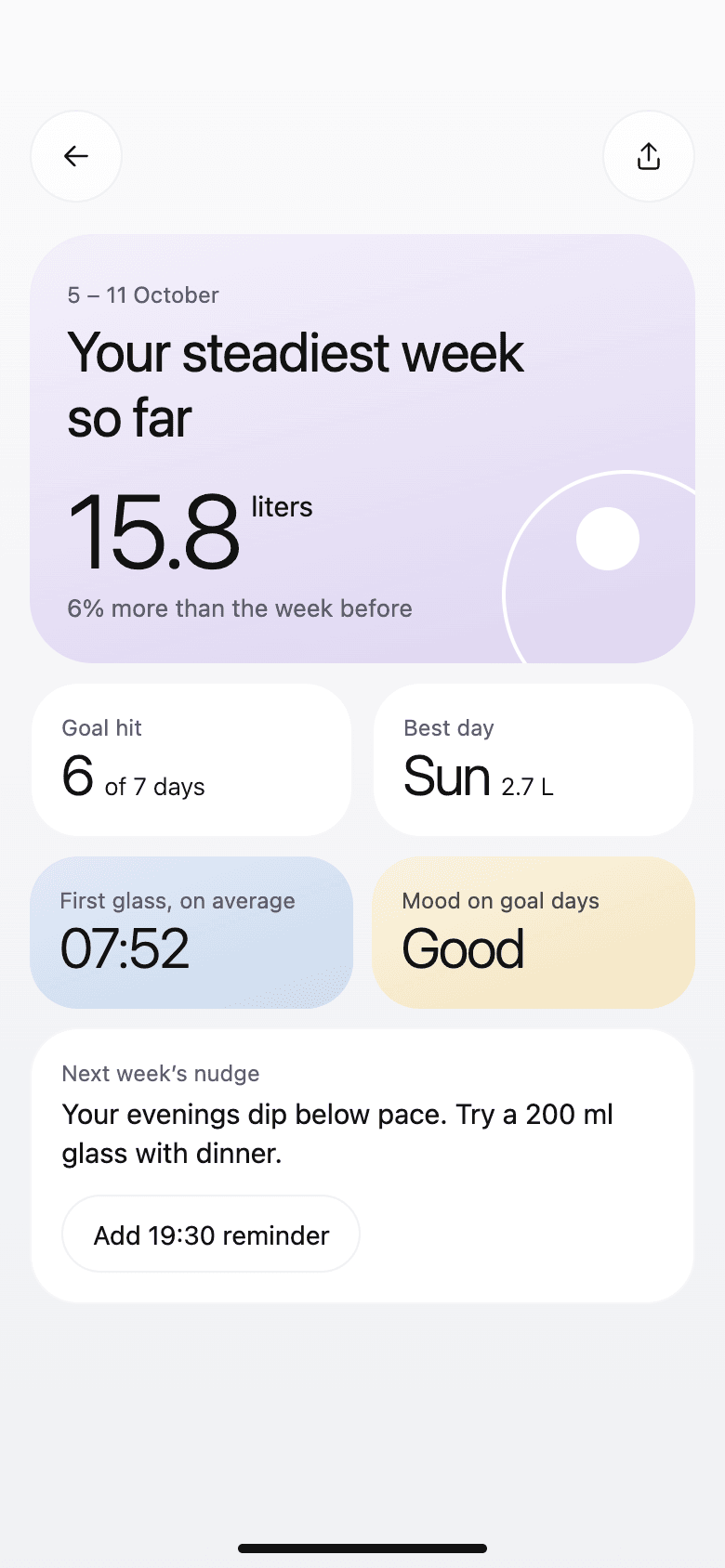
Weekly reportHow the week went, and one idea for next week. Daily check-inMood, sleep, energy, and symptoms. 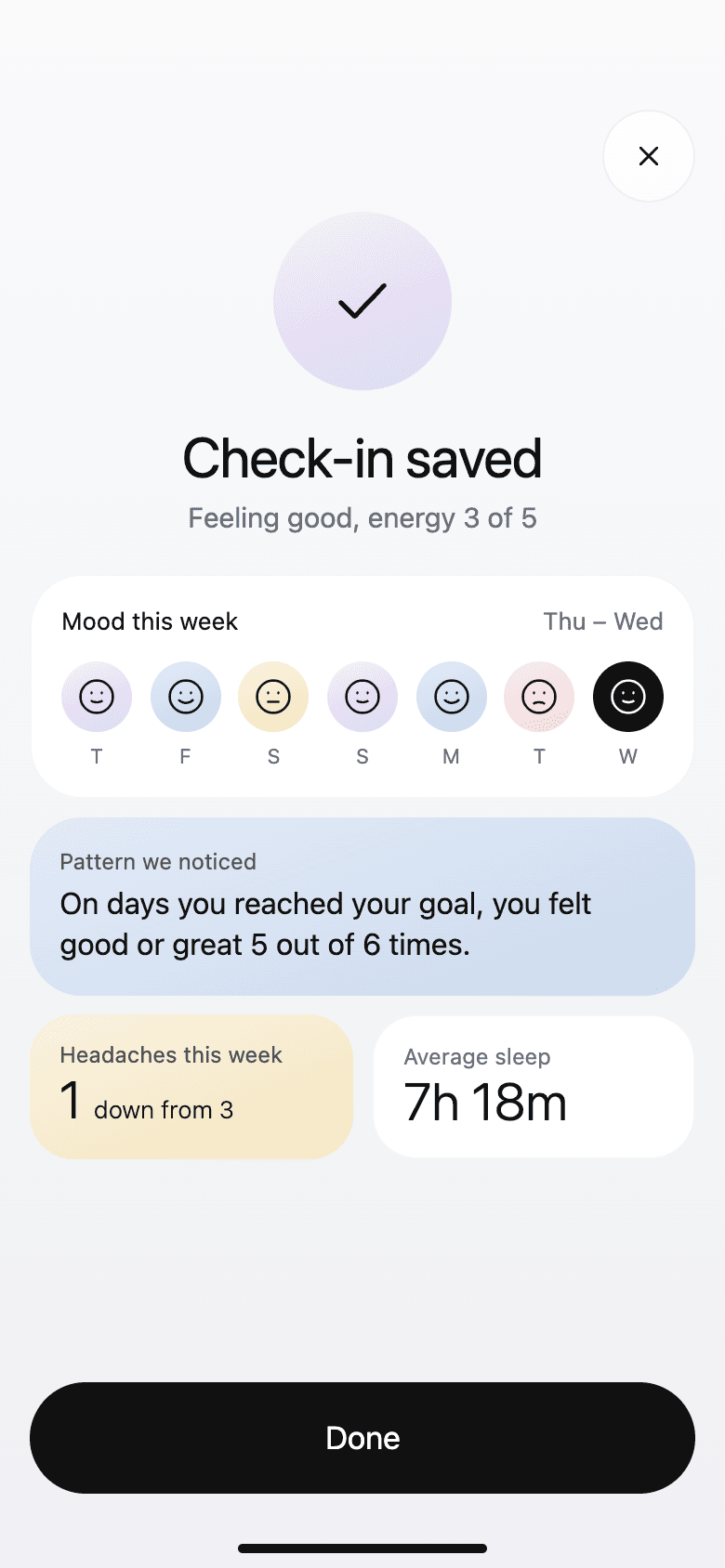
Check-in savedPatterns between water and mood. 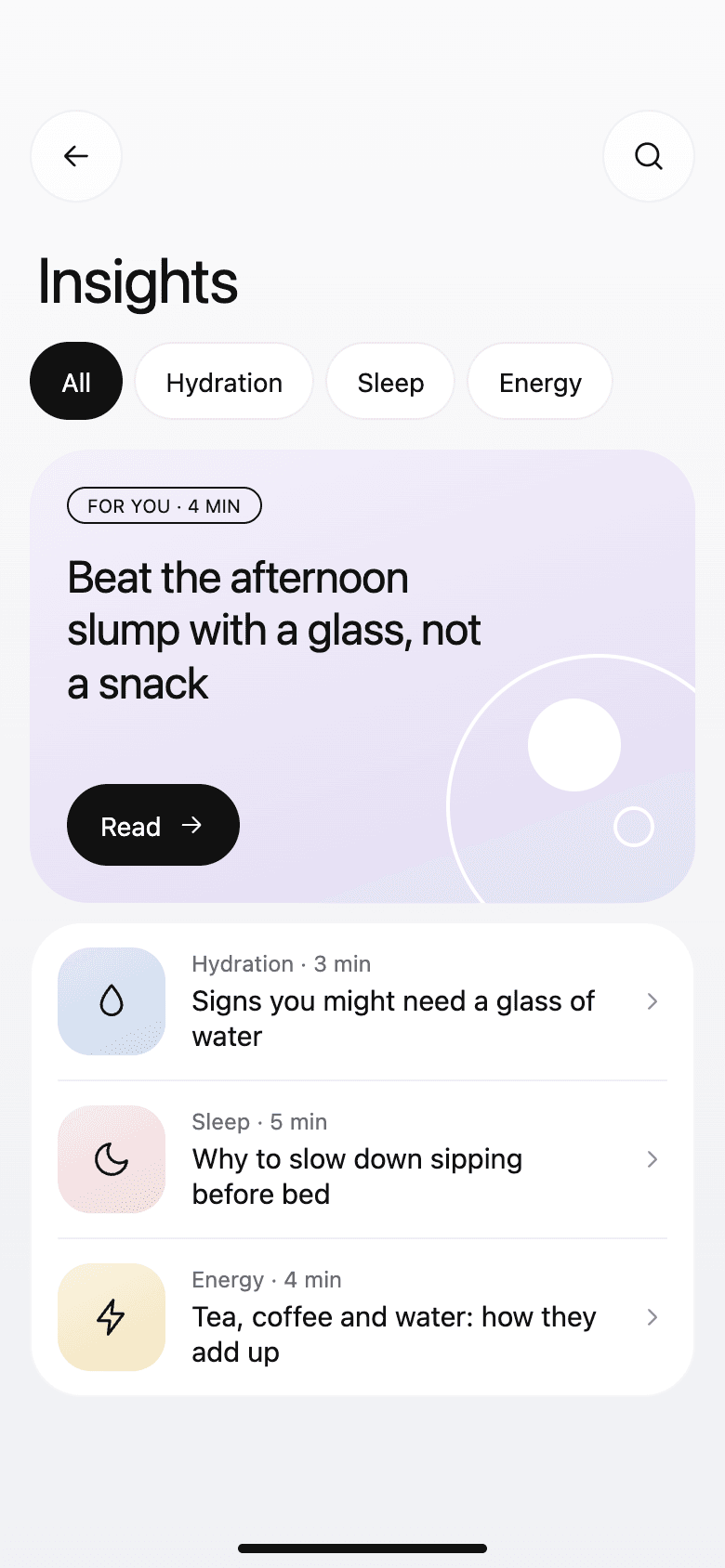
InsightsShort reads on hydration, sleep, and energy. 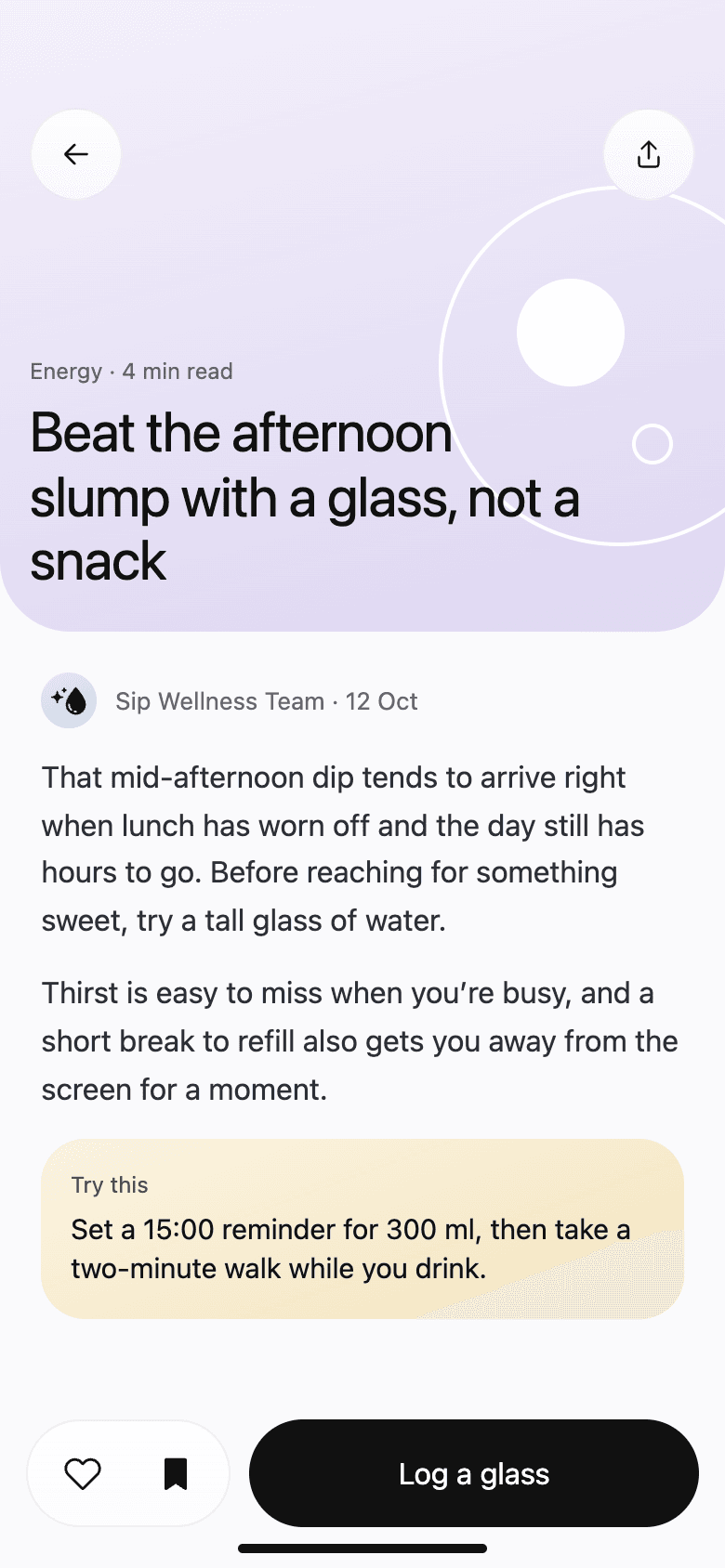
ArticleA four-minute read with a tip to try. 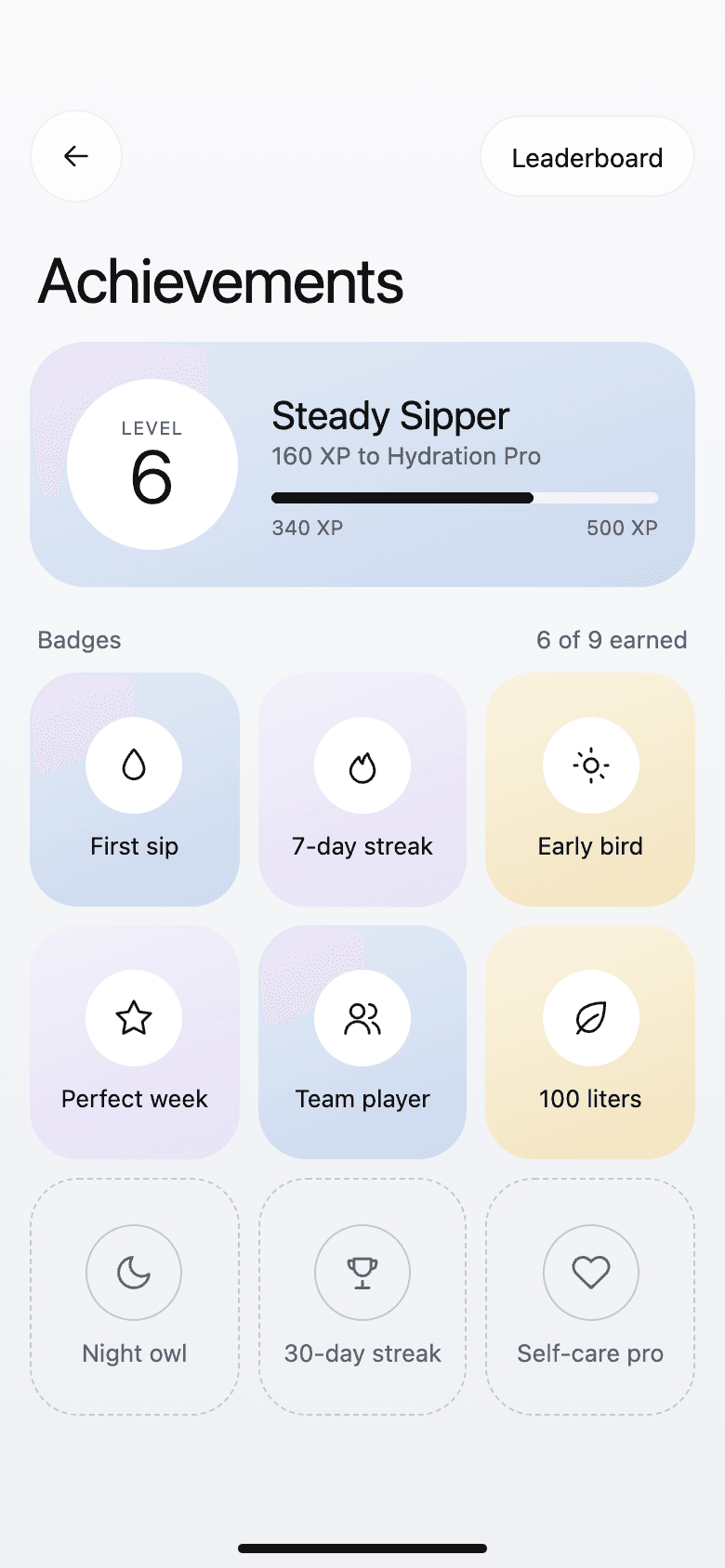
AchievementsLevels and badges. 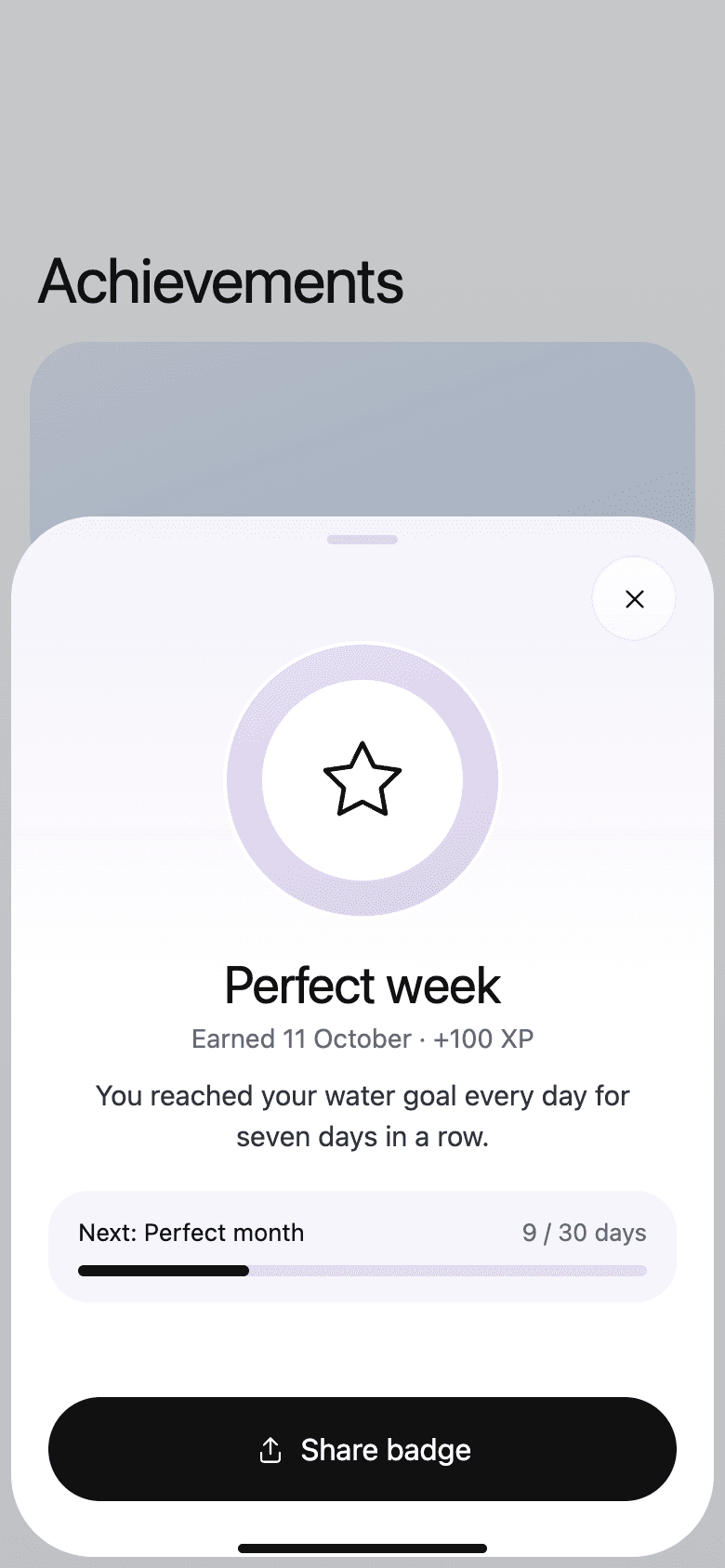
Badge detailWhat it took, and what comes next.
Friends and challenges
The problemHabits stick better with other people, but few people want friends seeing their health data.
What we did
- A weekly leaderboard and seven-day challenges turn the habit into a light game.
- Only progress percentages and badges are shared. The empty Friends screen says so before anyone is invited.
- Challenges come in three types: a daily goal streak, most liters, or earliest first glass.
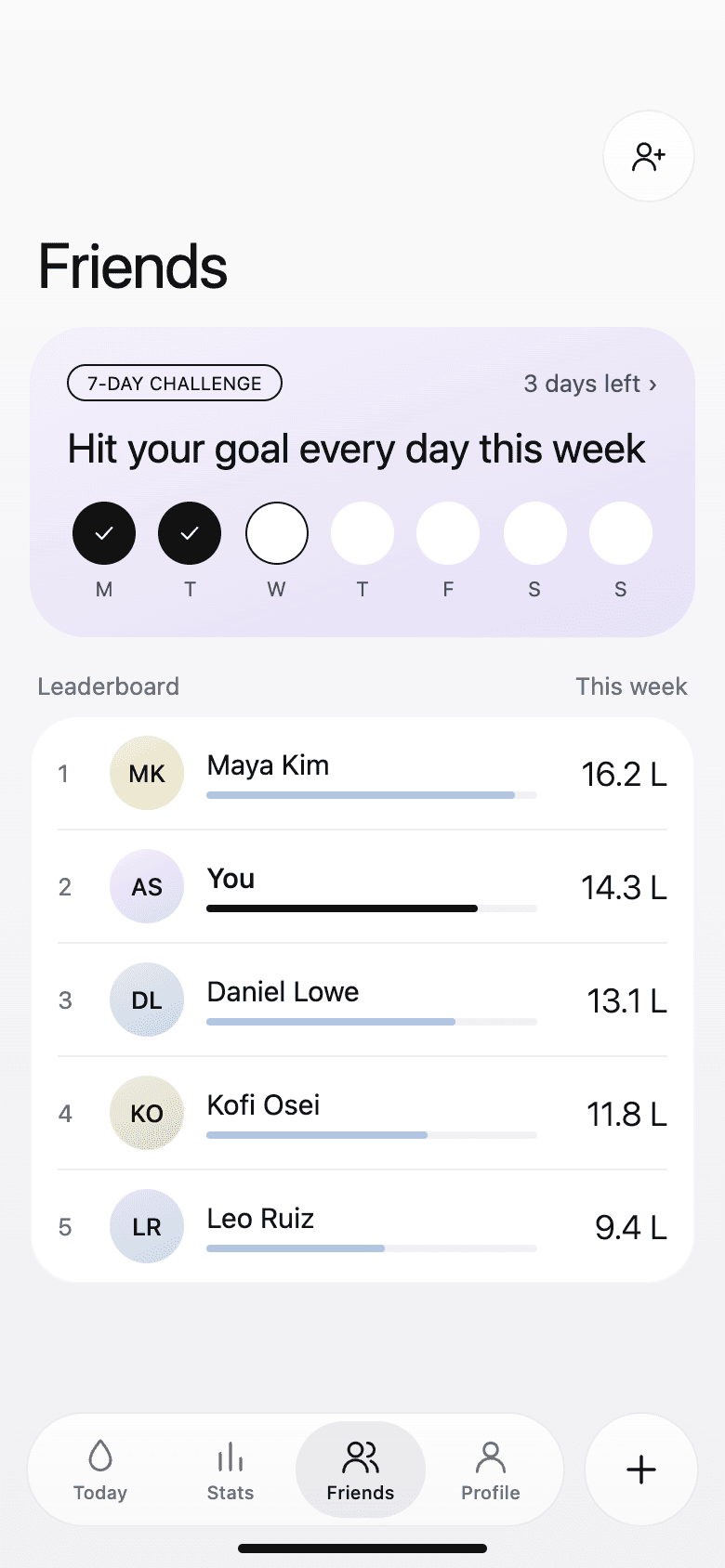
FriendsThe week's challenge and leaderboard. 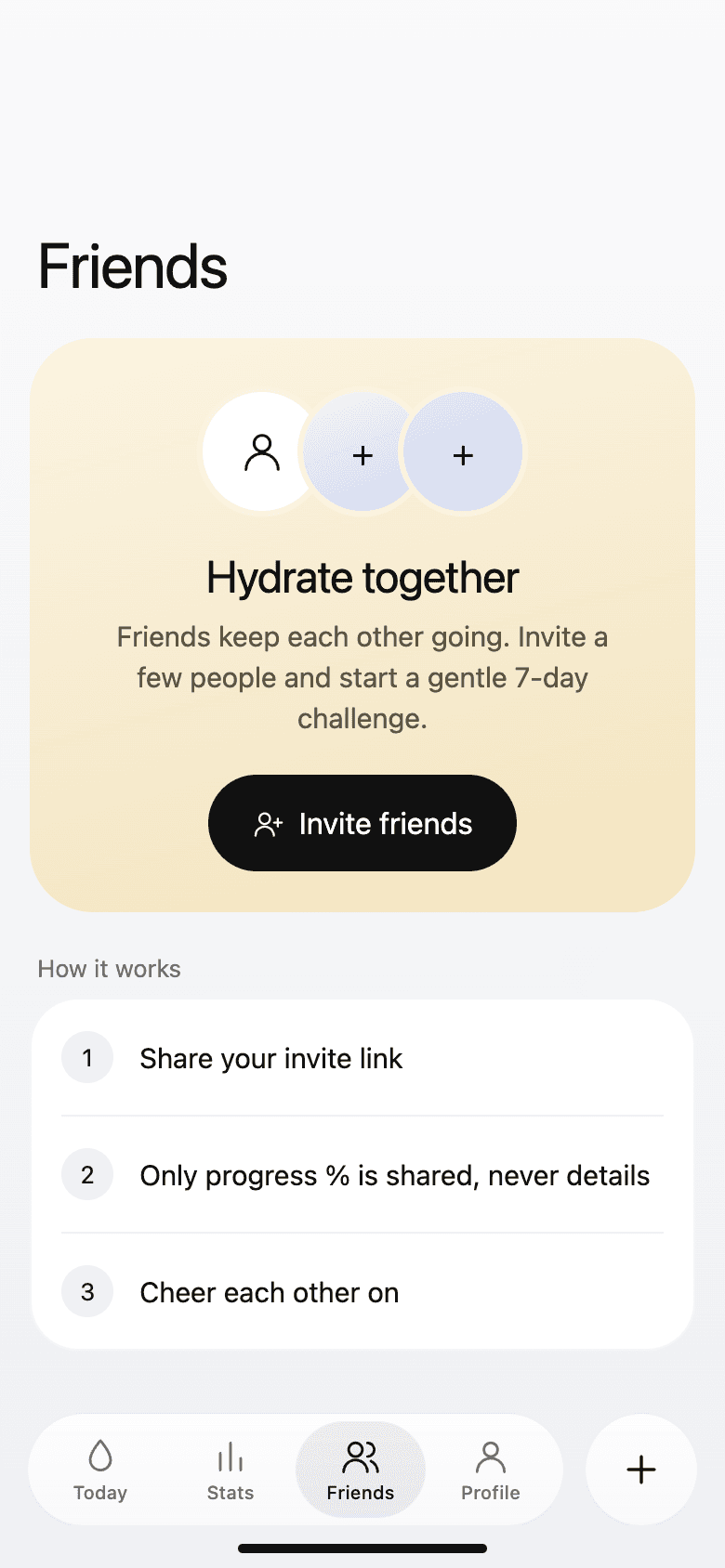
No friends yetHow it works, and what is shared. 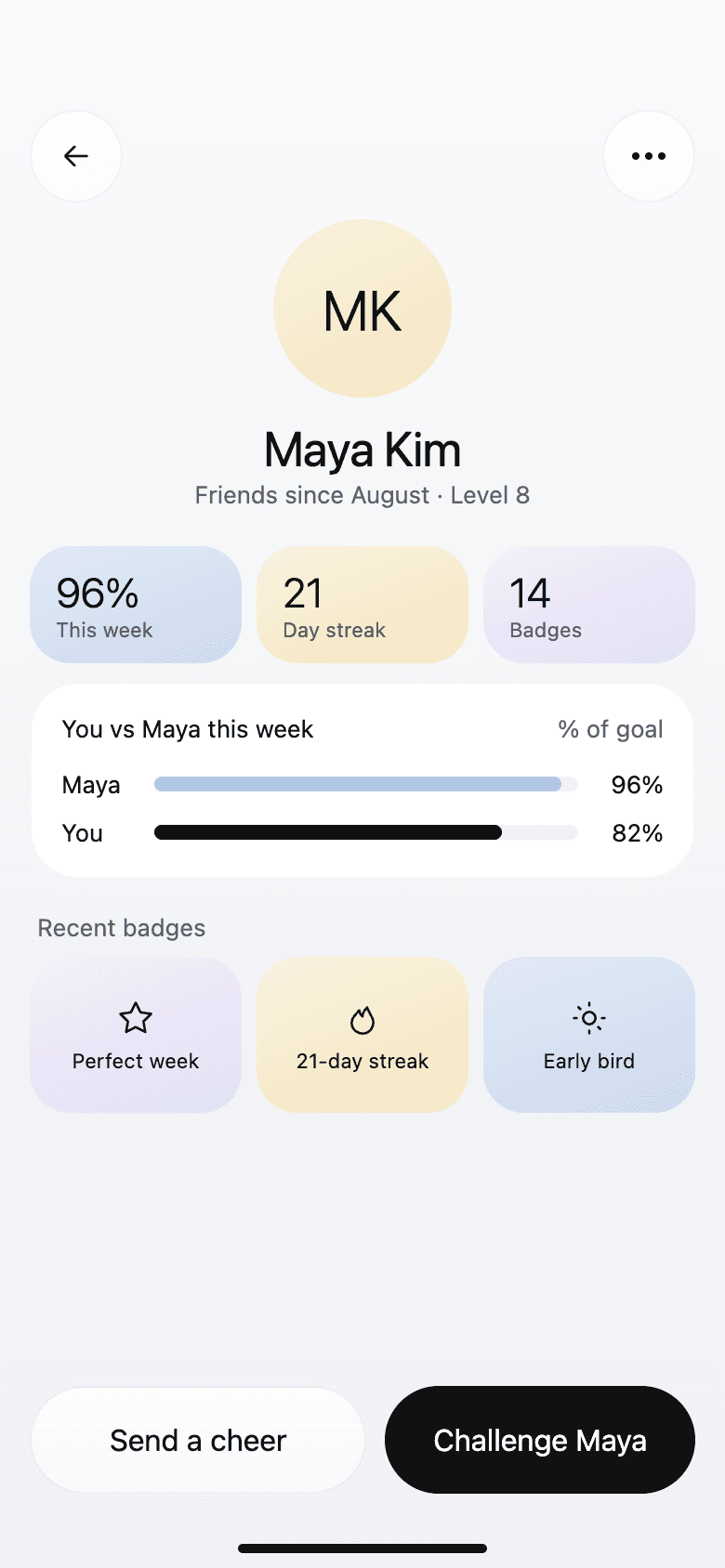
Friend profileYou and a friend, side by side this week. 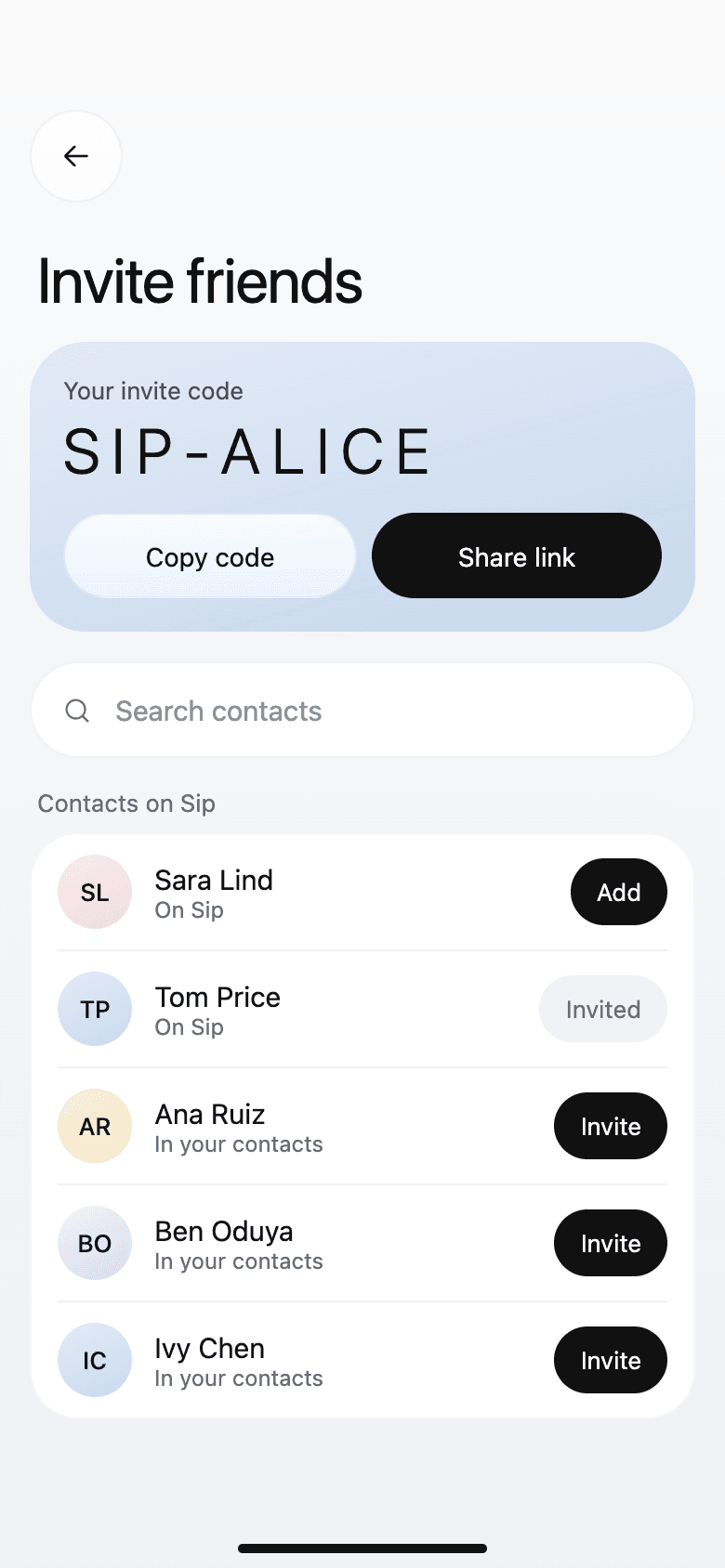
Invite friendsAn invite code and contacts already on Sip. 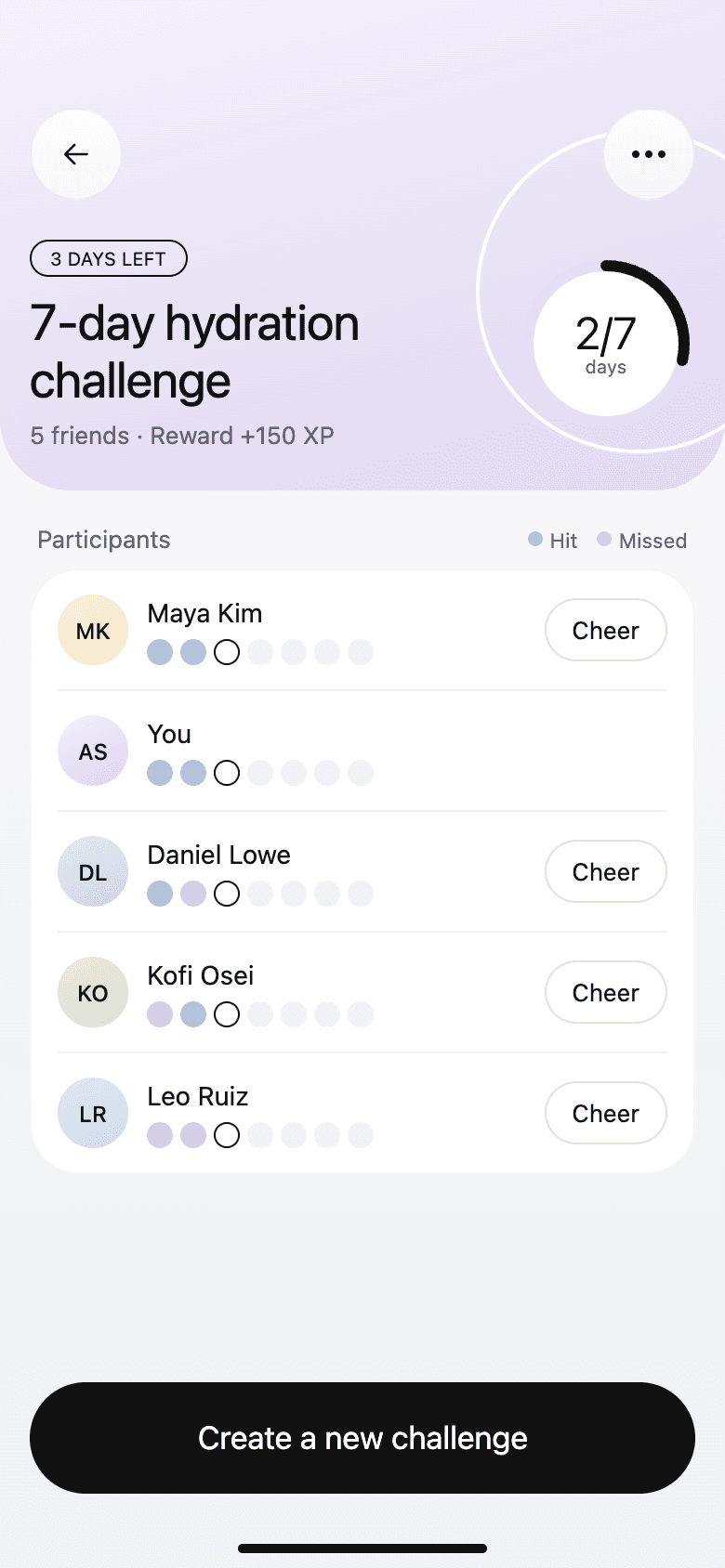
ChallengeWho has hit their goal each day. 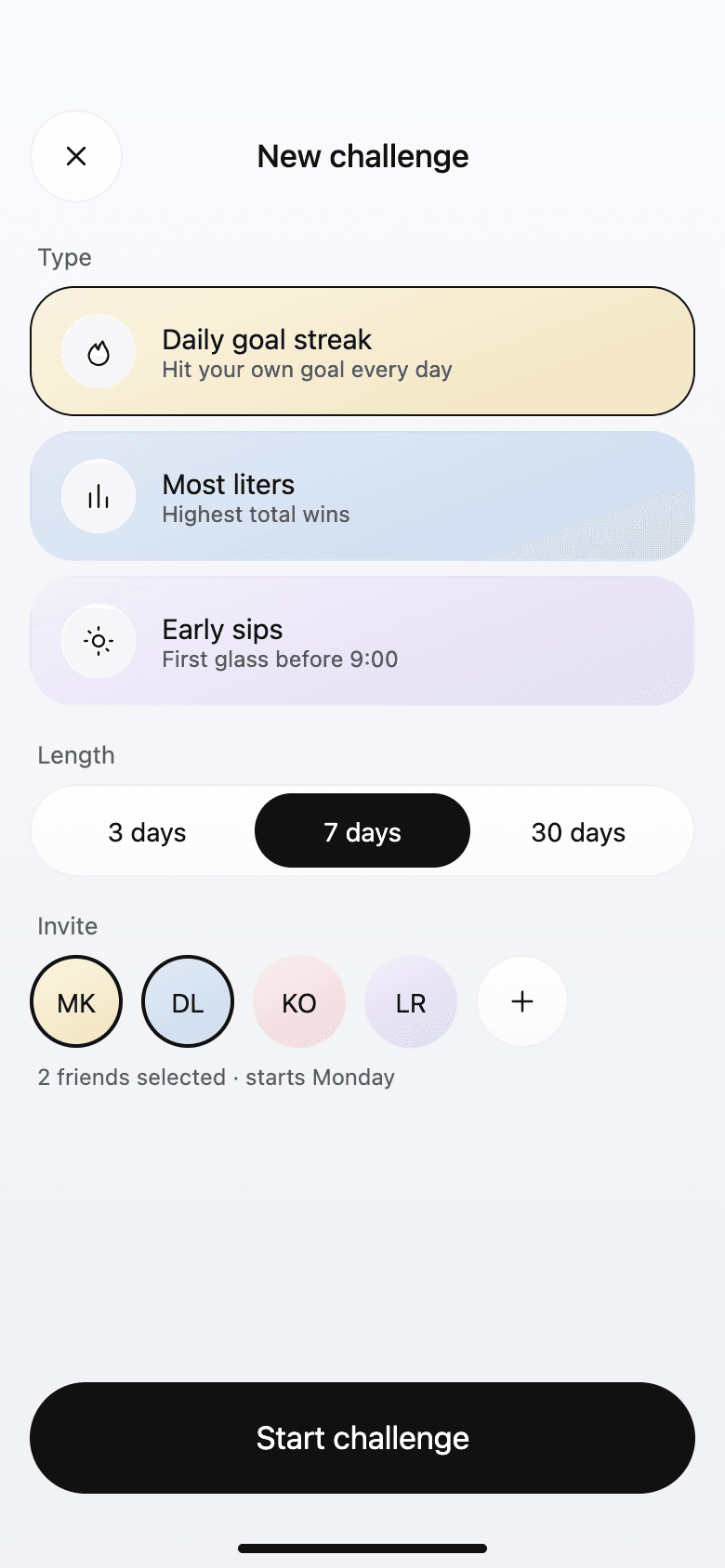
New challengeType, length, and who to invite.
Settings and Sip Pro
The problemIf people can't tune the reminders, they turn them off altogether.
What we did
- Reminders can be smart, every 90 minutes while awake and skipped when on track, or set for fixed times. Quiet hours follow bedtime.
- The goal can stay automatic or be set by hand, and tea and coffee can count partly toward it.
- Health sync, a watch app, and lock screen widgets let people log without opening the app.
- Privacy says what friends can see, data exports as CSV, and deleting the account explains what it removes.
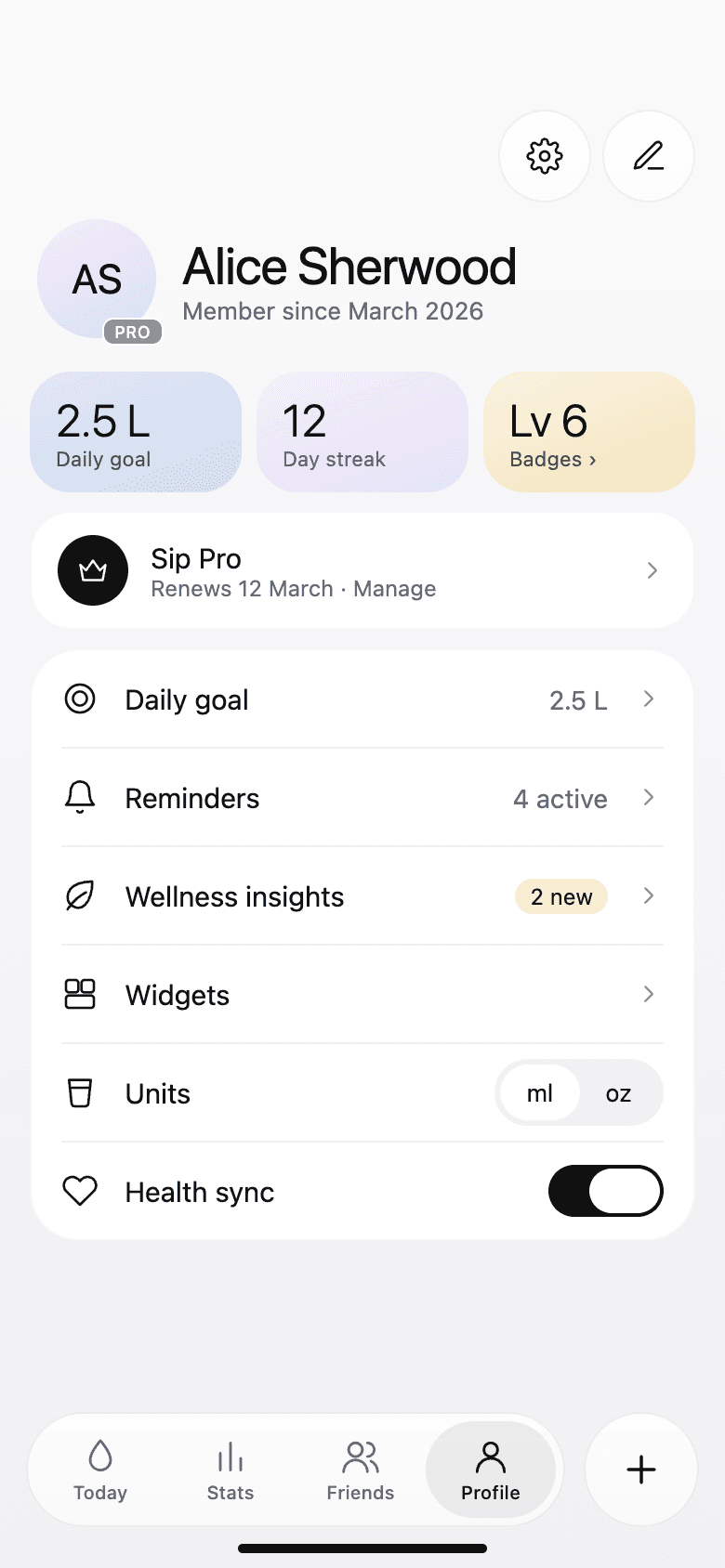
ProfileGoal, streak, level, and Sip Pro. 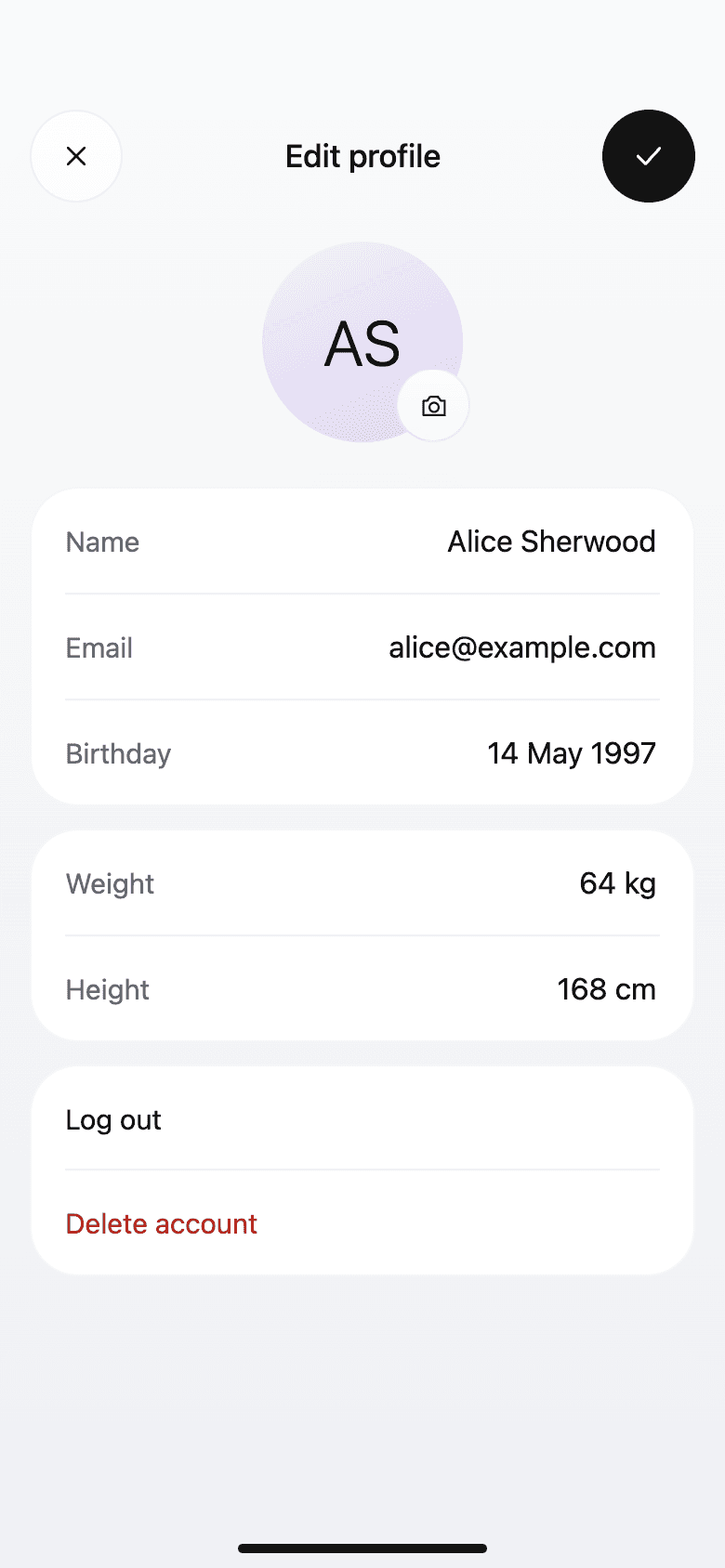
Edit profilePersonal details used for the goal. 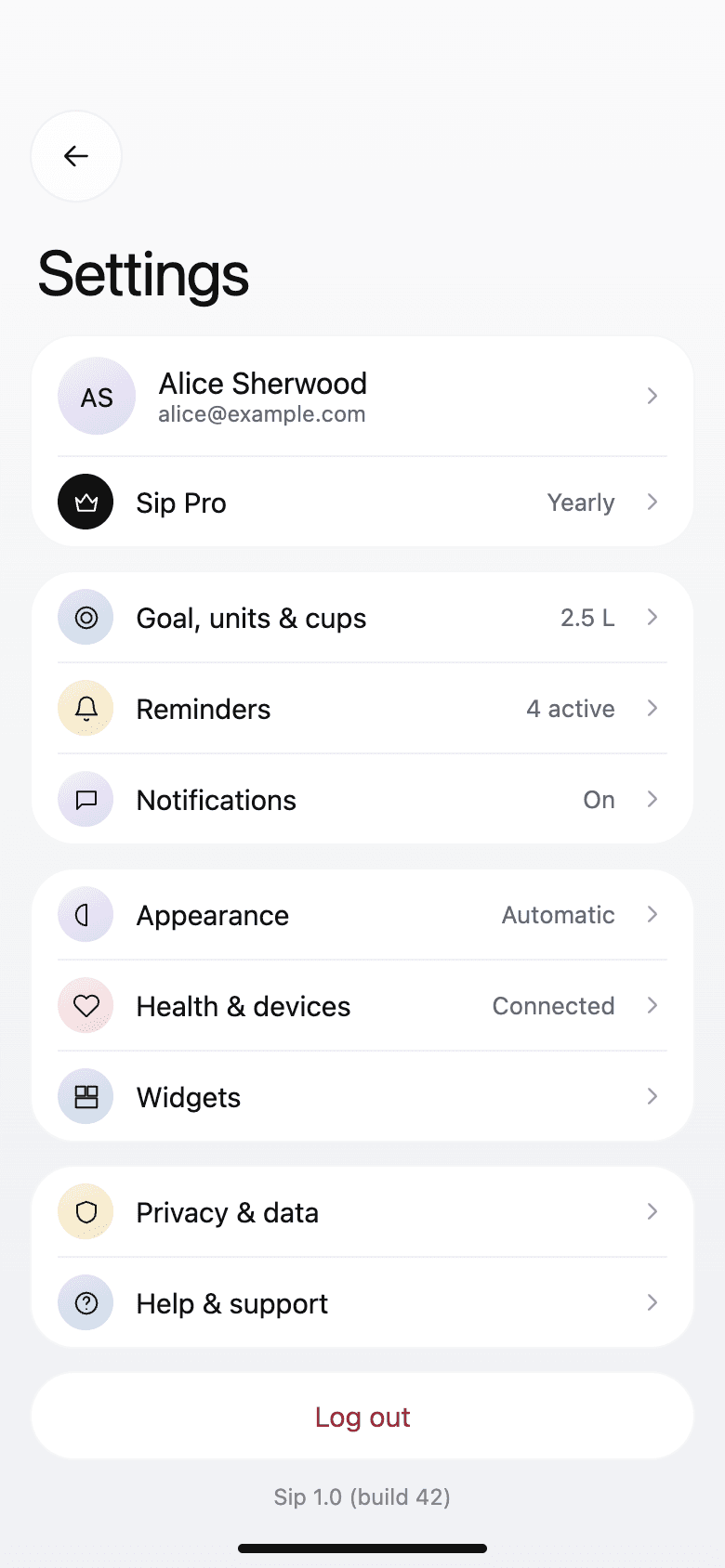
SettingsEverything in one list. 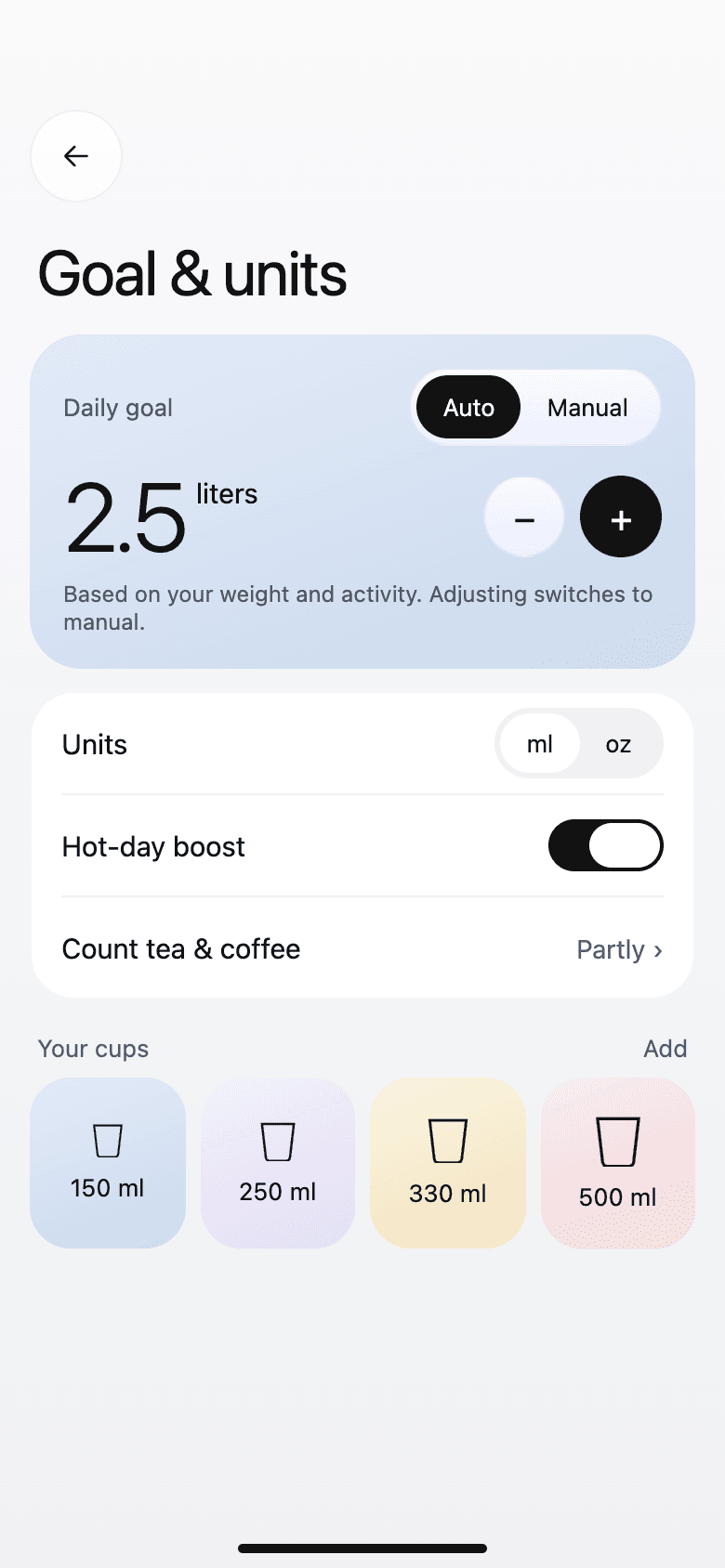
Goal and unitsAutomatic or manual, ml or oz, your cups. 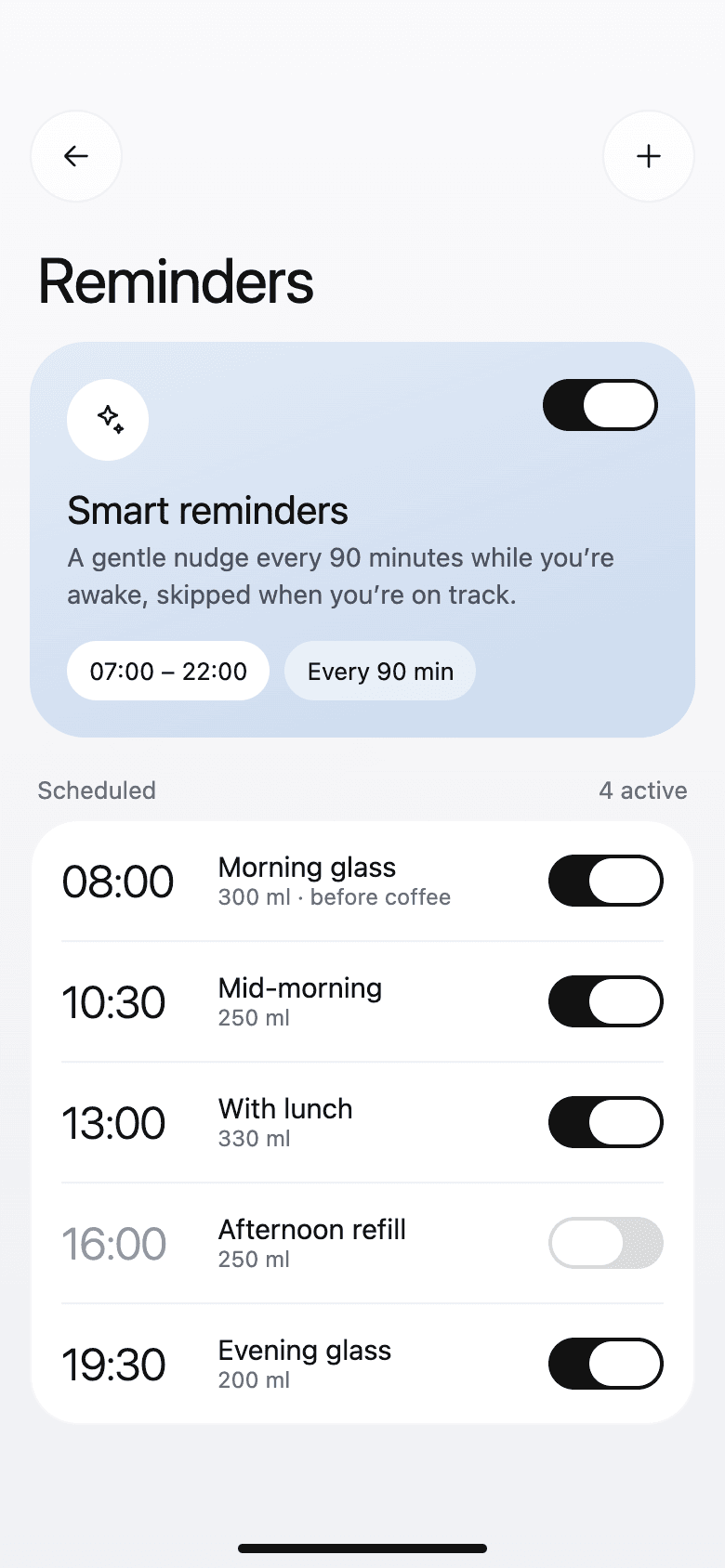
RemindersSmart or scheduled, with quiet hours. 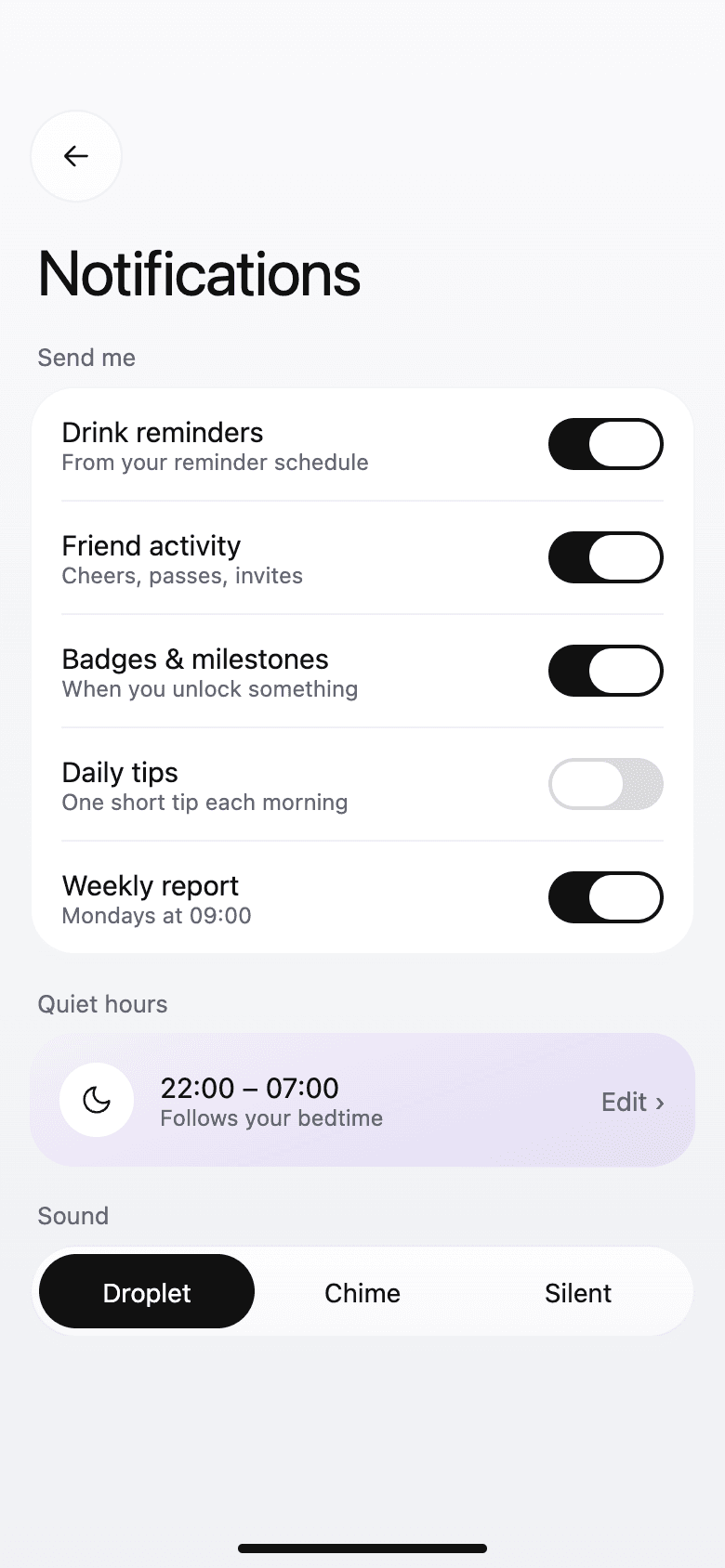
Notification settingsWhat to hear about, and when not to. 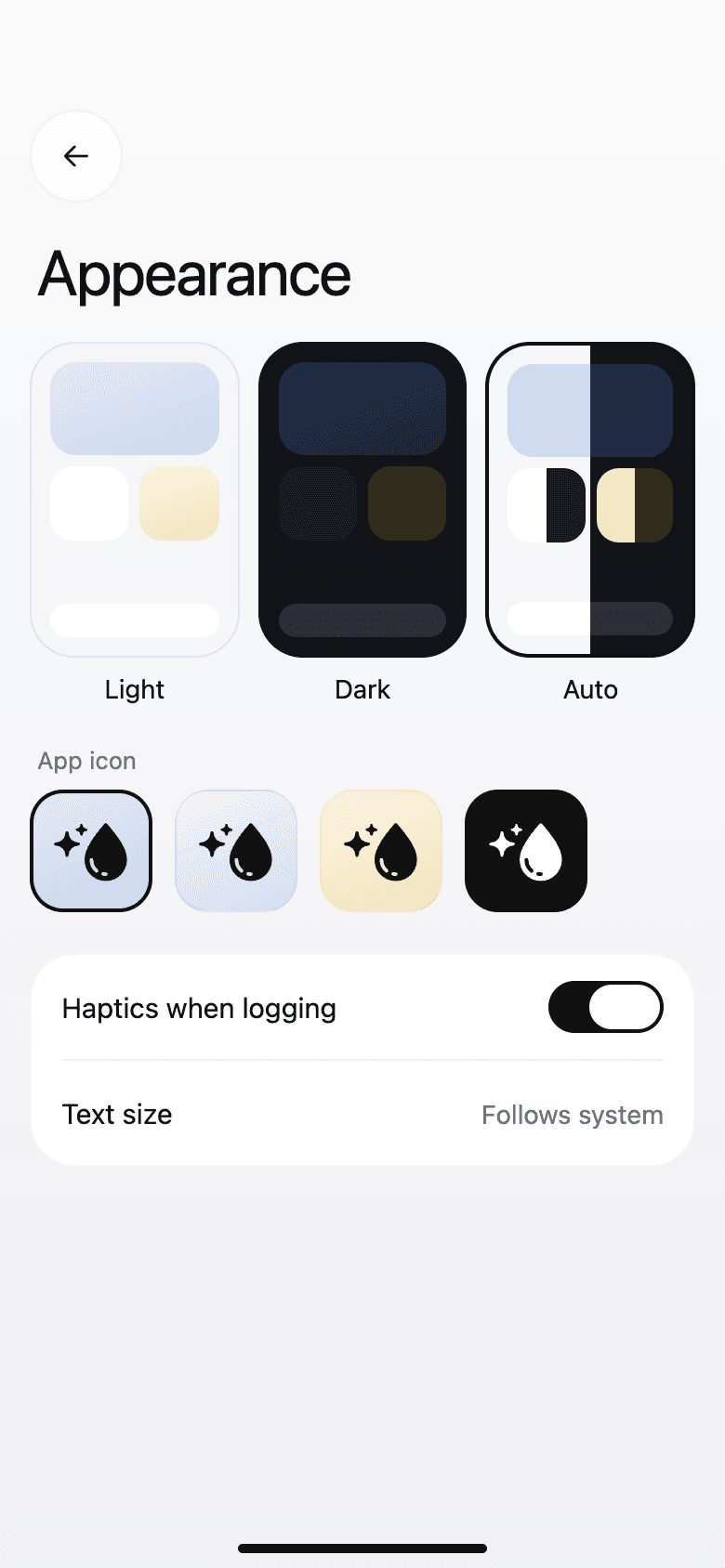
AppearanceLight, dark, or automatic, and the app icon. 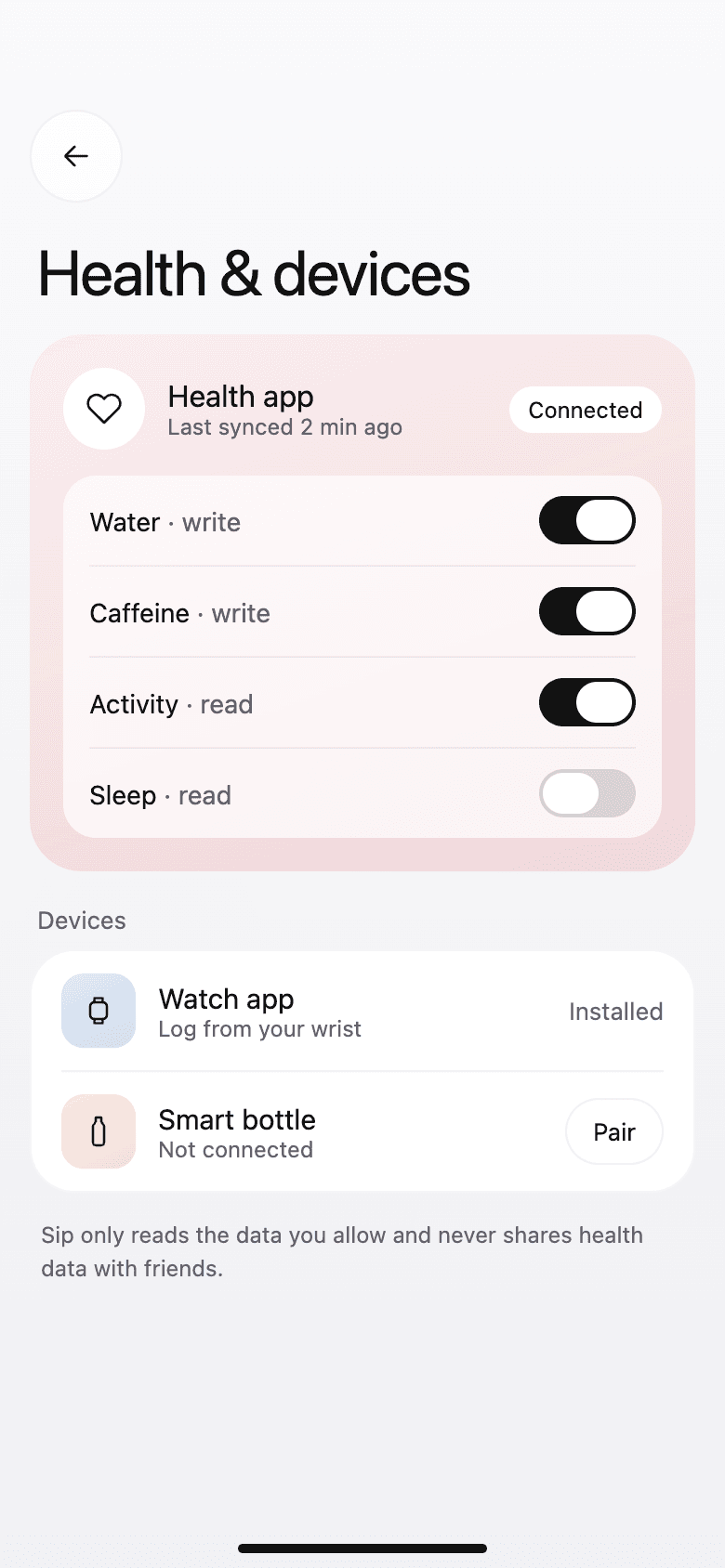
Health and devicesHealth app, watch, and smart bottle. 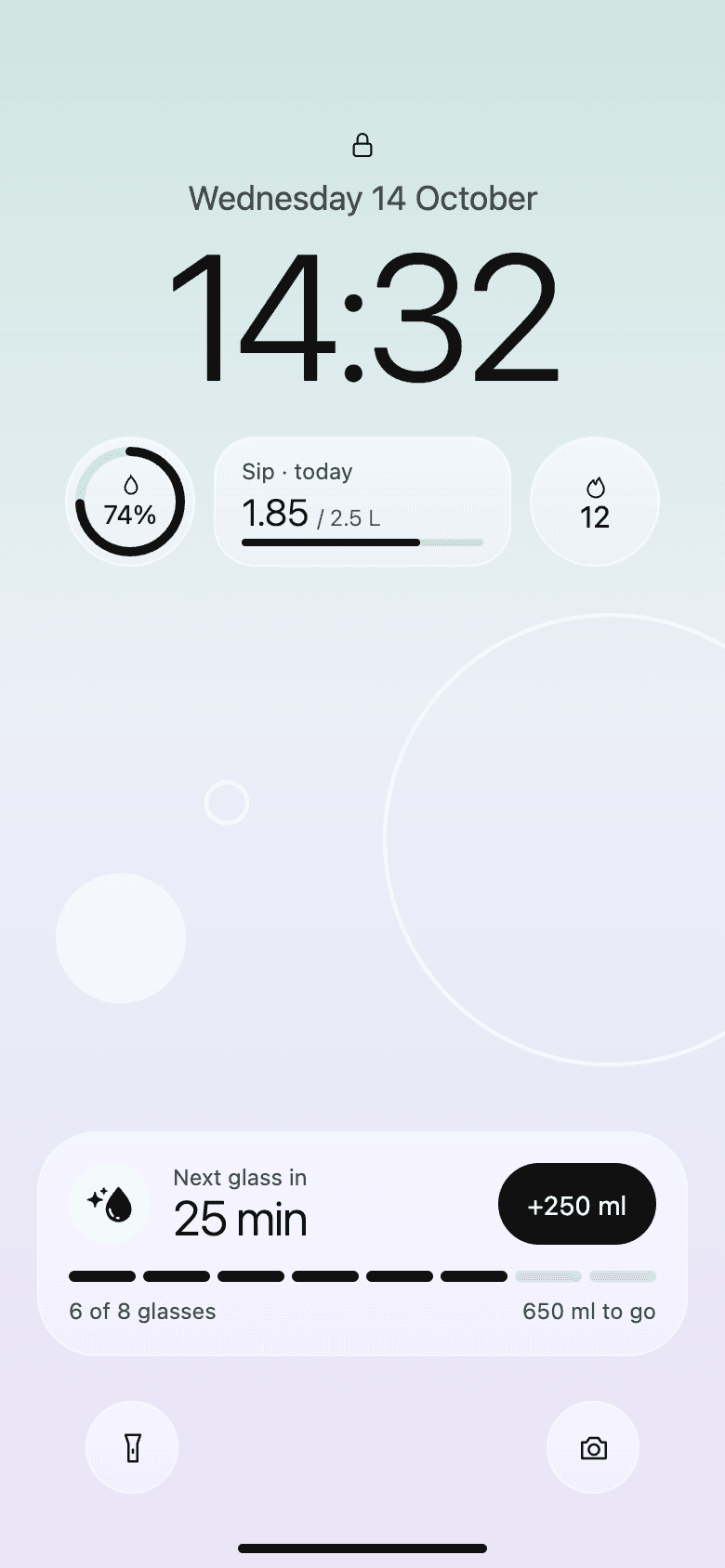
Lock screen widgetsToday's progress and the next glass. 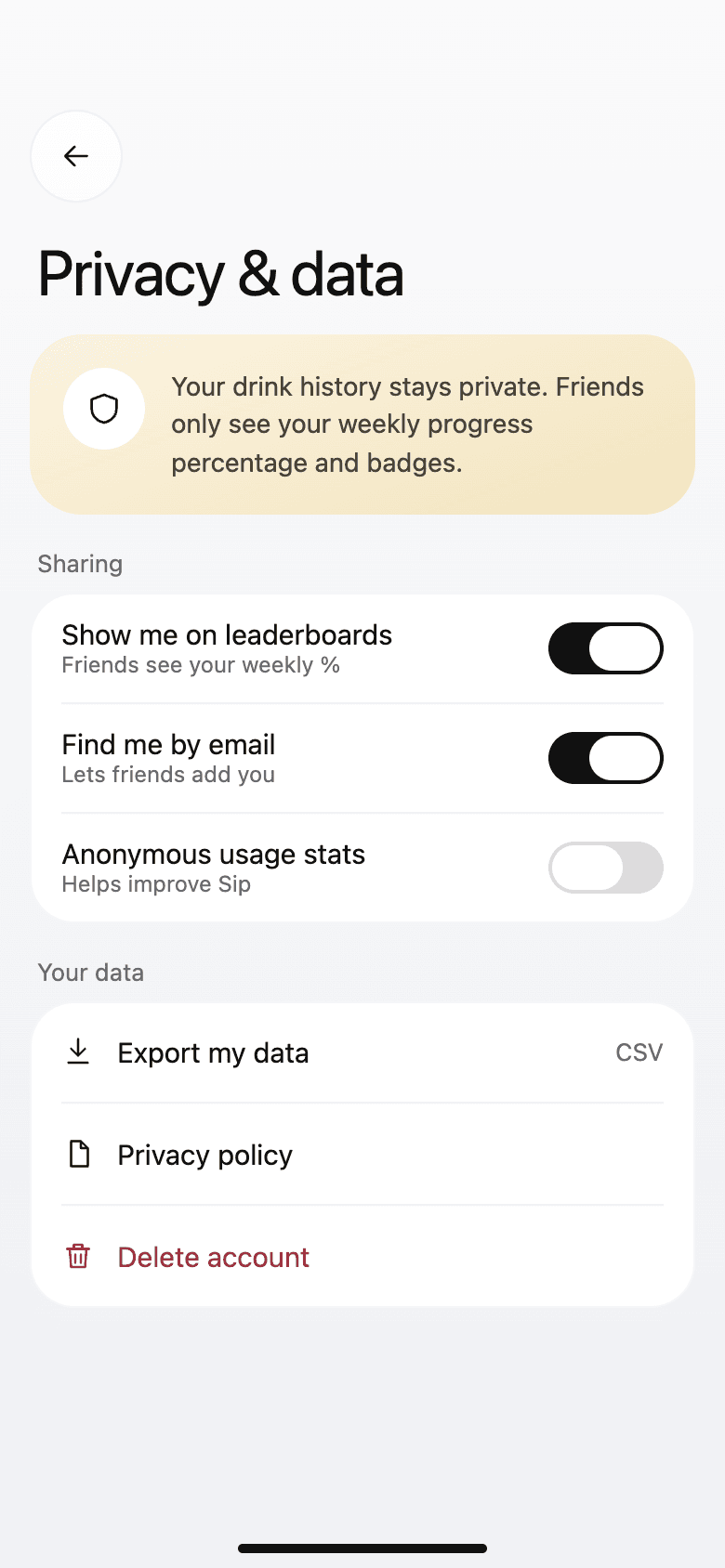
Privacy and dataWhat friends see, export, and delete. 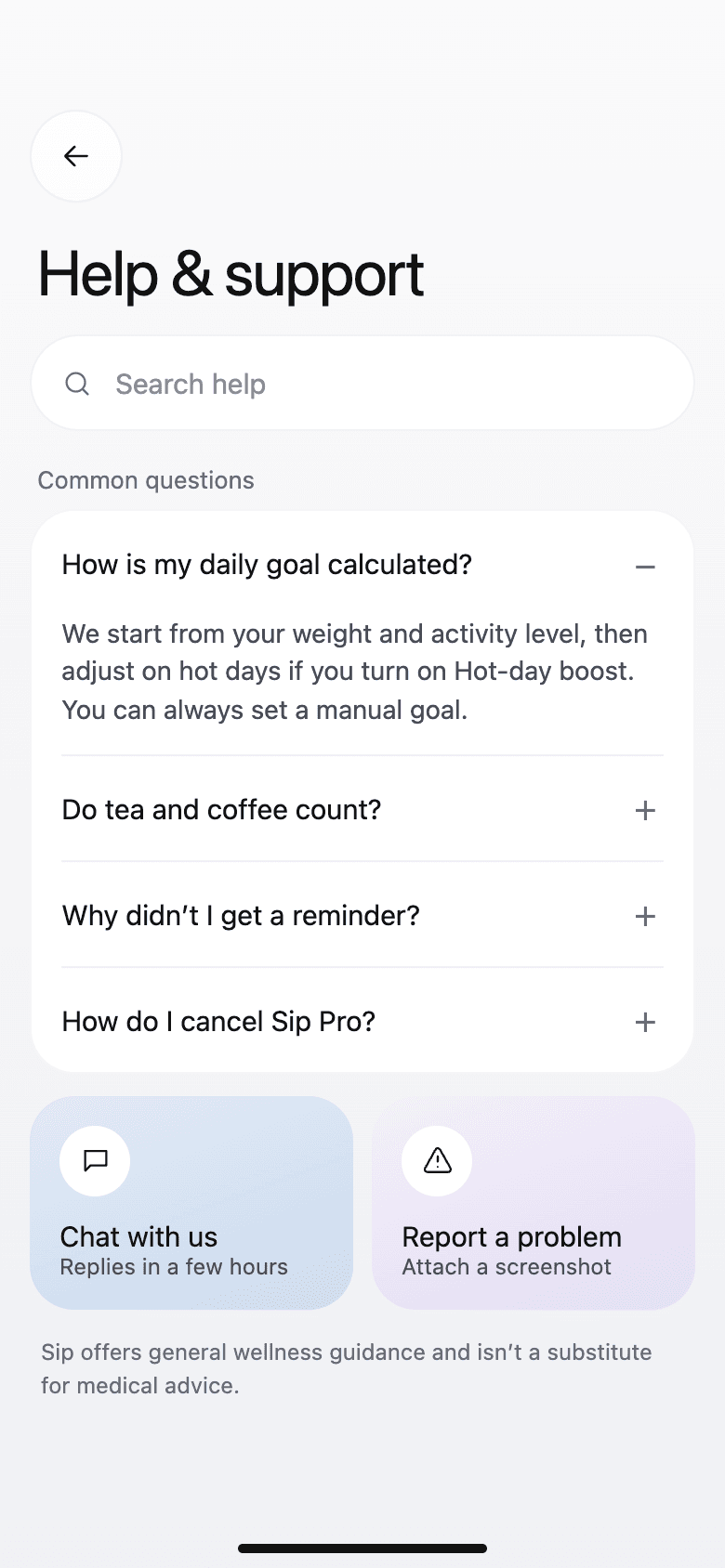
HelpCommon questions answered first. 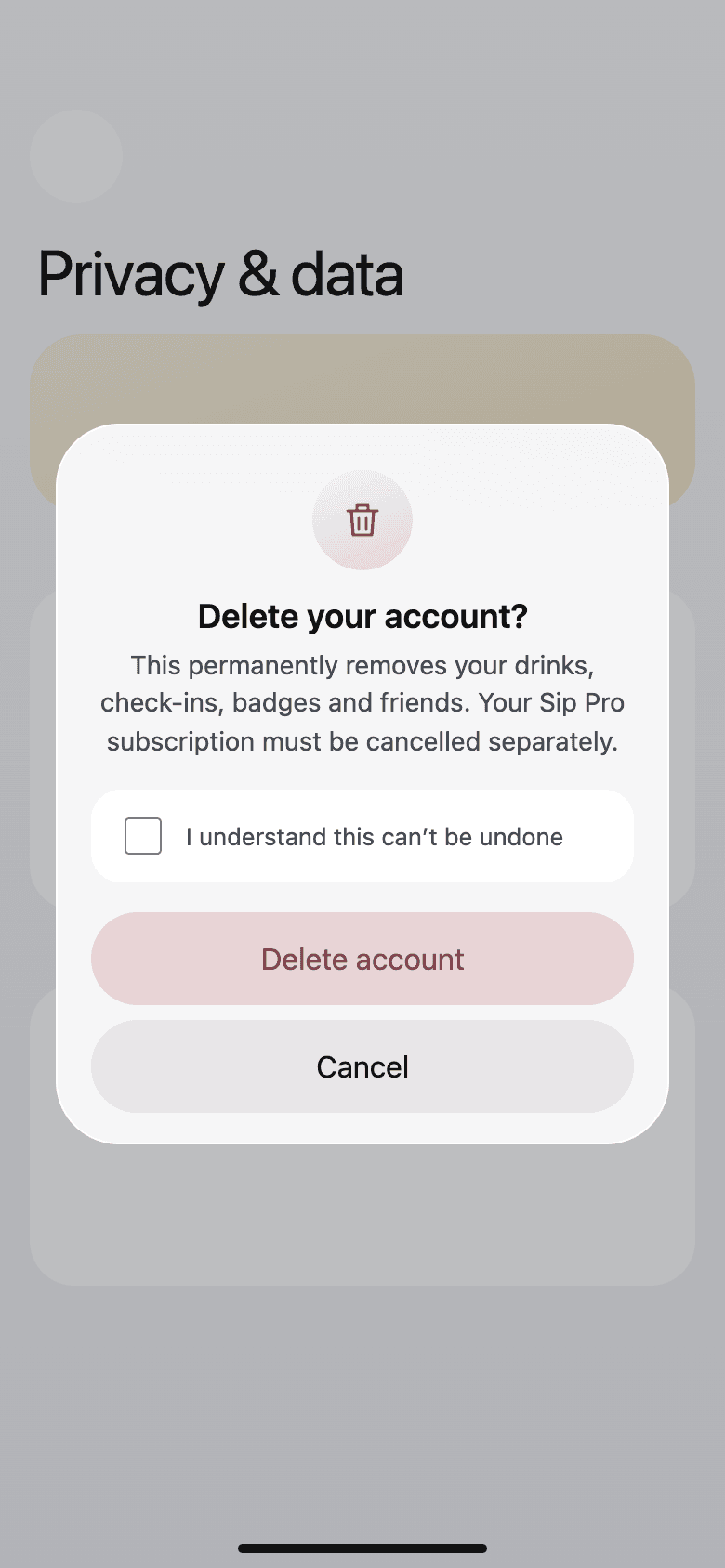
Delete accountWhat it removes, confirmed with a checkbox. 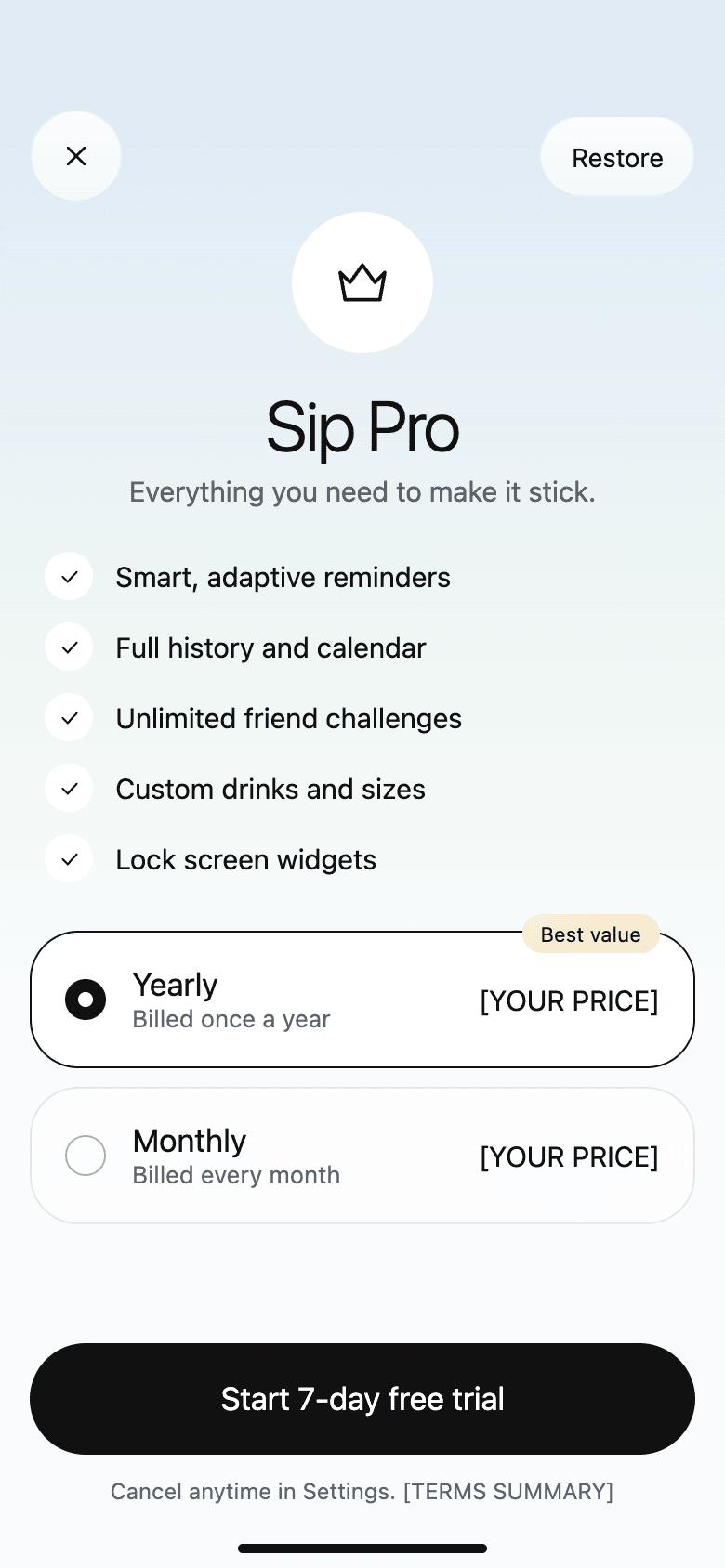
Sip ProWhat Pro adds, with a free trial. 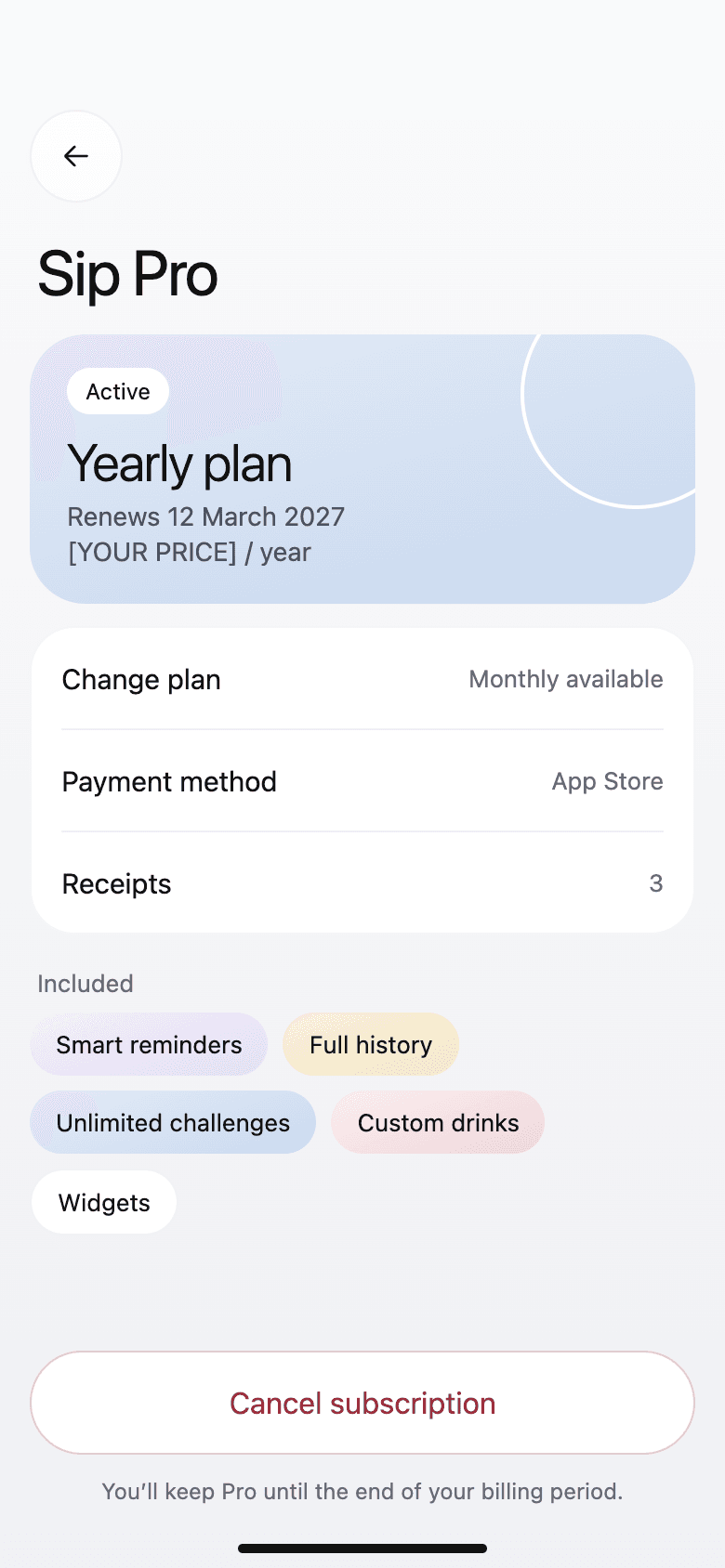
Manage planPlan, payment, receipts, and cancel.
The visual system
Each card's color says what it's about: blue for water, lavender for how you feel, sand for streaks and rewards.
- Ink#111111Type and primary buttons
- Mist#F0F1F4Screen background
- Water#CBDAEEWater and progress
- Deep water#3F5F8FType on water cards
- Lavender#DCD3F0Mood, wellness, and badges
- Sand#F3E4BFStreaks and rewards
- Color by meaning
- Blue is water, lavender is wellbeing, and sand is streaks and rewards. The colors are used the same way throughout.
- Soft surfaces
- Cards sit on soft gradients with translucent edges and use the system font. It looks like it belongs on an iPhone.
- Every state drawn
- Empty, loading, offline, error, and dark versions are all designed.
- Built to be used
- Main touch targets are at least 44 points, and every icon-only button has a label for screen readers.
How success is measured
The numbers that show whether the design fixes the problem.
- How many days a week people hit their goal
- How many people keep reminders on after the first month
- Average taps to log a drink
- How many people join or start a challenge
Next case study: Abita. A smart home web app that puts heating, lights, locks, cameras, and the energy bill in one place, and shows what needs attention first.
Planning an app like this? Send a few lines about it, see how a project runs week by week, or browse all our work.
Have something worth building?
- Product strategy
- iOS
- Design systems
- Launch sites
- Measurement
- Android
- Prototypes
- UX design
- MVPs
- Web apps
- UI design
Send a few lines about it. You will get an honest reply within two days, and a plan if it fits.